

ChatGPT Desktop
ChatGPT Desktop (integrating Codex Desktop capabilities) supports connecting directly to MoArk models via custom Model Providers, with dynamic model catalog discovery.
MoArk natively supports the Responses API (wire_api = "responses"), including streaming responses, tool calling, and code generation.
To use the terminal-based CLI version, see Codex CLI.
Prerequisites
- Install the Client: Download and install ChatGPT Desktop from the official website or the Codex website.
- Obtain an Access Token: Go to Workbench -> Settings -> Access Tokens to create or copy your token. Keep your access token secure.
- Choose a Default Model: Determine your default model slug. This guide uses
DeepSeek-V4-Flashas an example (the platform supports case-insensitive model slugs, recognizing bothdeepseek-v4-flashandDeepSeek-V4-Flash).
AI-Assisted Configuration
If ChatGPT Desktop or CLI is already running, you can paste the prompt below to have it inspect the local environment and merge the configuration automatically:
Please configure the current ChatGPT Desktop installation to connect to Moark custom models.

Parameters:
- provider ID: my-gateway
- provider name: Moark
- base_url: https://moark.ai/v1
- wire_api: responses
- model_catalog_url: https://moark.ai/v1/models
- model: DeepSeek-V4-Flash
- auth field: experimental_bearer_token with my Moark access token
- feature flag: api_key_model_discovery = true under [features]

Instructions:
1. Locate the user-level config.toml based on the OS and CODEX_HOME.
2. Read the existing configuration and create a backup.
3. Merge the configuration instead of appending the entire block to the end of the file.
4. Place model and model_provider at the top level before any table declarations; update existing keys in place to prevent duplicate definitions.
5. Check for model_catalog_json, active profiles, or other overriding configurations; report conflicts with their locations rather than deleting unrelated settings.
6. Do not output the access token in chat, logs, or diffs; prompt me to enter it locally if not already provided.
7. Validate TOML syntax after modification and summarize changes.
8. Prompt me to completely exit and restart the client without automatically terminating the application.
9. Guide me through testing model discovery, basic streaming, read-only tool calling, and multi-turn conversation.
Manual Configuration
Locate Configuration File
ChatGPT Desktop stores user-level settings in config.toml. The default path on each operating system is:
- Windows
- macOS / Linux
Open the file in File Explorer or a text editor (create it if it does not exist):
%USERPROFILE%\.codex\config.toml
Open the file in your terminal or text editor:
~/.codex/config.toml
ChatGPT Desktop's built-in Codex mode uses ~/.codex/config.toml. If CODEX_HOME is set, edit the config.toml file inside that directory instead. Back up your existing configuration before making changes.
Edit config.toml
Merge the following block into config.toml, replacing placeholders with your values:
# Top-level settings: must be placed before the first [table] header
model = "DeepSeek-V4-Flash"
model_provider = "my-gateway"

[features]
api_key_model_discovery = true

[model_providers.my-gateway]
name = "Moark"
base_url = "https://moark.ai/v1"
wire_api = "responses"
model_catalog_url = "https://moark.ai/v1/models"
experimental_bearer_token = "<your-access-token>"
Configuration Parameters
| Field | Description |
|---|---|
model | Default model slug (e.g., DeepSeek-V4-Flash) |
model_provider | Active provider ID. Must match the section name [model_providers.<id>] (e.g., my-gateway) |
[features] | Set api_key_model_discovery = true to automatically populate the desktop model selector from the server catalog |
name | Provider display name (e.g., Moark) |
base_url | API base endpoint, configured as https://moark.ai/v1 (or https://moark.ai/api/v1 if routing via /api/v1) |
wire_api | Communication protocol format; must be set to "responses" |
model_catalog_url | Full remote catalog URL including /models, such as https://moark.ai/v1/models |
experimental_bearer_token | Your MoArk access token |
Configuration merge rules:
- Top-Level Placement:
modelandmodel_providerare top-level keys and must be placed before the first[...]table declaration. Update their values if they already exist. - Avoid Duplicate Tables: If
[features]already exists, addapi_key_model_discovery = trueunder it rather than declaring[features]twice. - Provider ID Consistency: The top-level
model_providervalue must exactly match the key in[model_providers.<id>]. - Full Catalog URL:
model_catalog_urldoes not automatically append/models; specify the complete URL. - Check Overrides: If
model_catalog_jsonis set, it overrides the remote catalog. Remove or comment it out to use remote discovery. Also verify that active profiles do not override your provider or model settings.
Restart and Verification
Save the file and completely exit and restart the client (closing the window does not terminate the background process; exit from the system tray or task manager).
Test the connection in order:
-
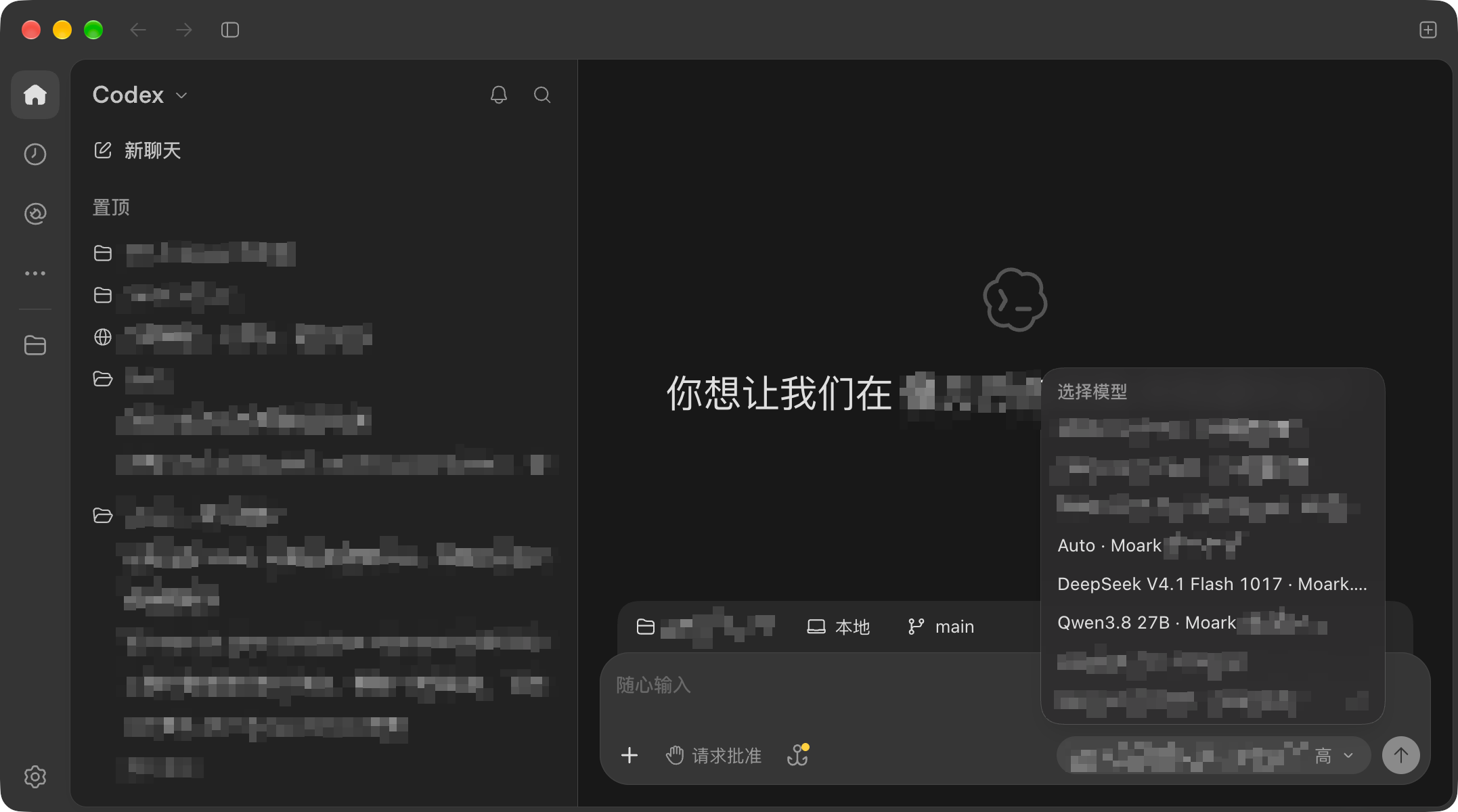
Model Catalog: Open the model selector in the lower-left corner and verify that the remote models appear, then select your target model.
-
Streaming Response: Send a greeting or simple query to verify streaming output.
-
Tool Calling: In a test project directory, send a read-only request (e.g., "List the files in the current directory and explain their purpose, do not modify files") to confirm tool execution.
-
Multi-Turn Follow-Up: Ask a follow-up question based on the previous response to confirm context continuation.
Troubleshooting
Models Do Not Appear in the Selector
- Check TOML Syntax: Ensure there are no duplicate table headers and that top-level keys are not placed inside a table.
- Verify Catalog URL: Confirm that
model_catalog_urlincludes/modelsand is reachable. - Clear Local Model Cache: Codex caches catalog metadata locally. After completely exiting the client, delete the cache file and restart:
- Windows (PowerShell)
- macOS / Linux
Remove-Item "$env:USERPROFILE\.codex\models_cache.json" -ErrorAction SilentlyContinue
rm -f ~/.codex/models_cache.json
If CODEX_HOME is set, delete models_cache.json in that directory.
Request Errors or Tool Failures
- Verify that your access token is valid, has sufficient quota, and contains no leading or trailing whitespace.
- Ensure
wire_apiis set to"responses". - If contacting support, provide the client version, model slug, and error message. Do not share your access token.
 京公网安备11011502039387号