

Dify
Dify is an open-source LLM (Large Language Model) application development platform that combines Backend-as-a-Service (BaaS) and LLMOps principles, enabling developers to rapidly build production-ready generative AI applications. Even non-technical users can participate in defining AI applications and managing data operations.
You can integrate MoArk's Serverless API with Dify by following the steps below:
Obtain Your Access Token
- Log in to the MoArk official website (or register an account if you don't have one).
- Navigate to the Dashboard, click Settings in the top-right corner, and select Access Tokens.
- Generate a new token and copy it for later use.
Integrate MoArk Models into Dify Applications
MoArk provides a range of models that can be seamlessly integrated into Dify's application orchestration process. Whether it's calling built-in models or adding custom models, developers have the flexibility to combine model capabilities in various ways to build generative AI applications that meet business requirements. Here's how to do it:
Call Built-in Models
For commonly used MoArk models, Dify has pre-configured integration settings, allowing developers to enable these models with just a few simple steps, quickly start building applications.
-
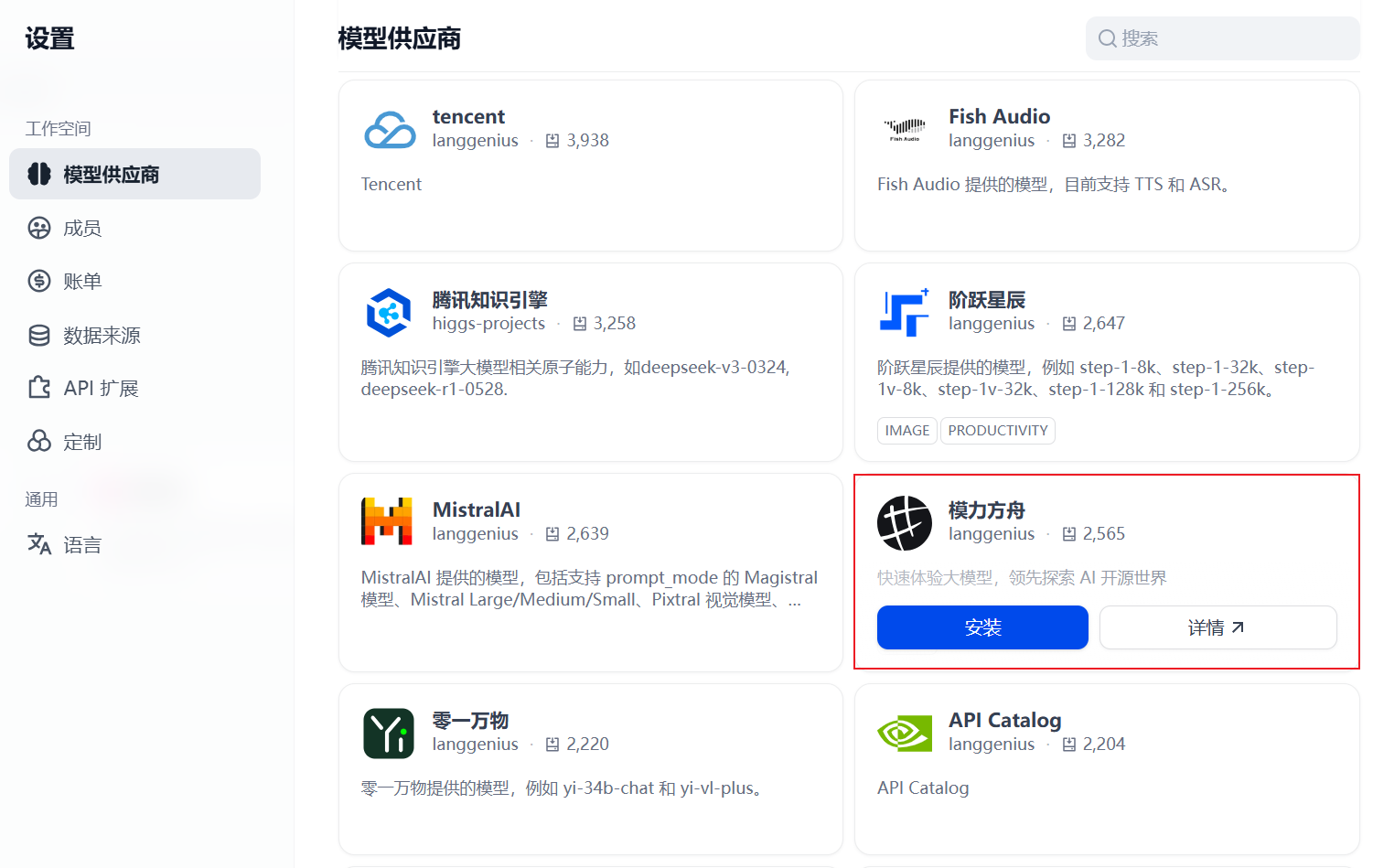
Log in to Dify, click Settings in the top-right corner, and select Model Providers.
-
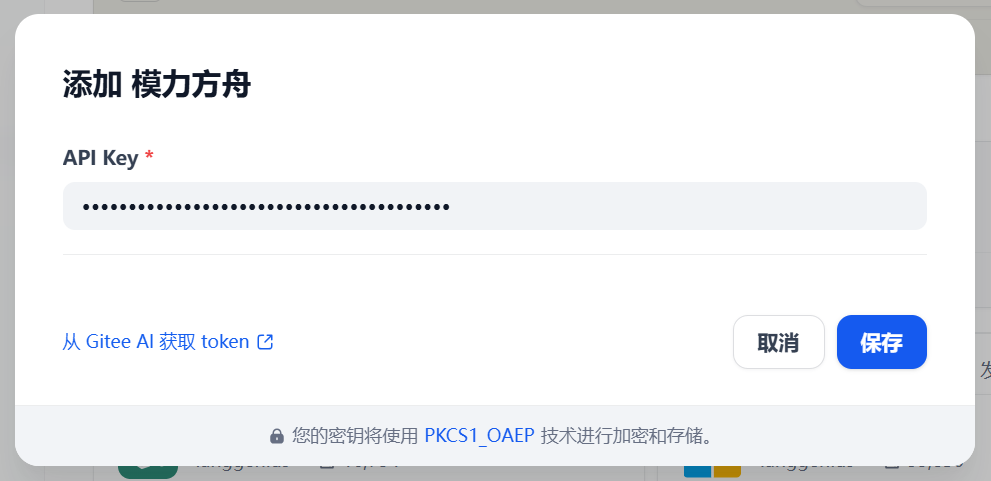
Select MoArk and install it, then input the previously copied access token, and click "Save".
-
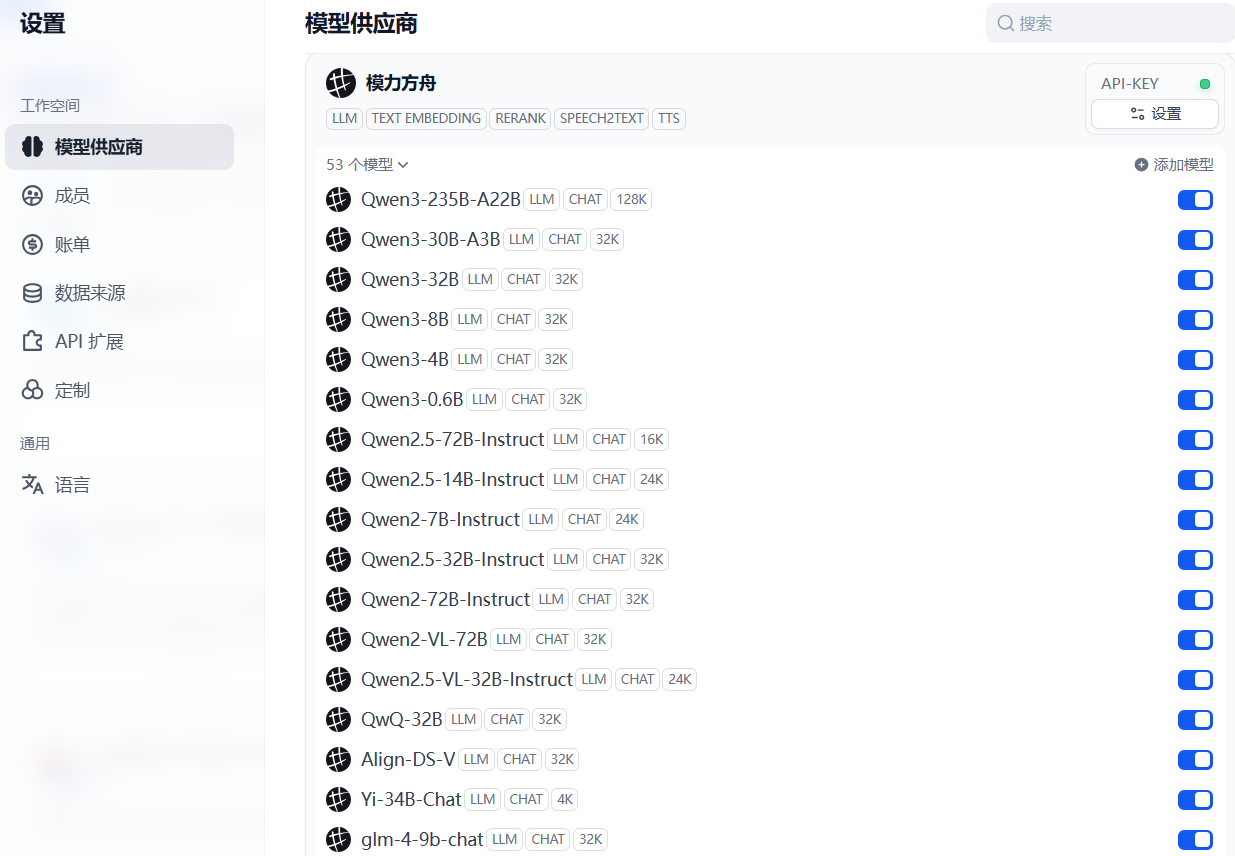
Now, you can call MoArk models in Dify application orchestration.
MoArk provides 53 models for developers to call, covering various application domains such as text generation, text completion, text embedding, re-ranking, speech-to-text, and text-to-speech.
After orchestration, click Publish to release the application, and now you have an application based on MoArk models and computational resources.
Add Custom Models
If you need to use MoArk's special models that are not built-in to Dify, you can add them to the Dify environment through custom configuration, extending the range of models available for application development.
-
Log in to Dify, click Settings in the top-right corner, and select Model Providers.
-
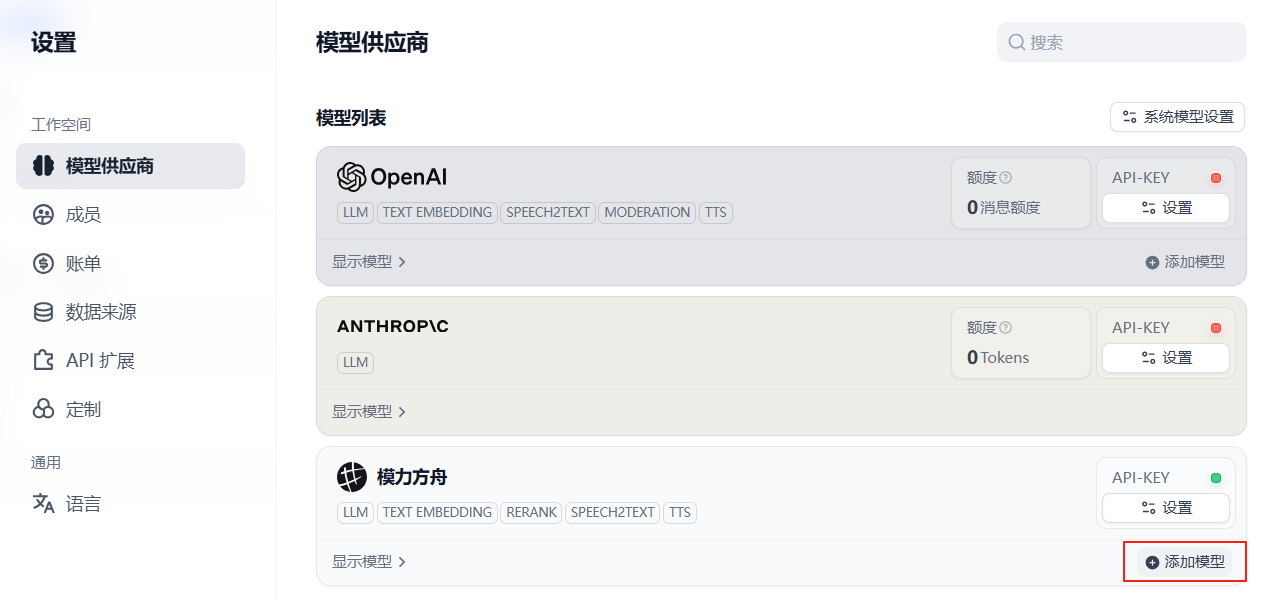
Select the installed MoArk models in the model list, input the corresponding access tokens, and click "Add Model".
-
In the pop-up window, Select Model Type → Enter Model Name → Input Access Token.
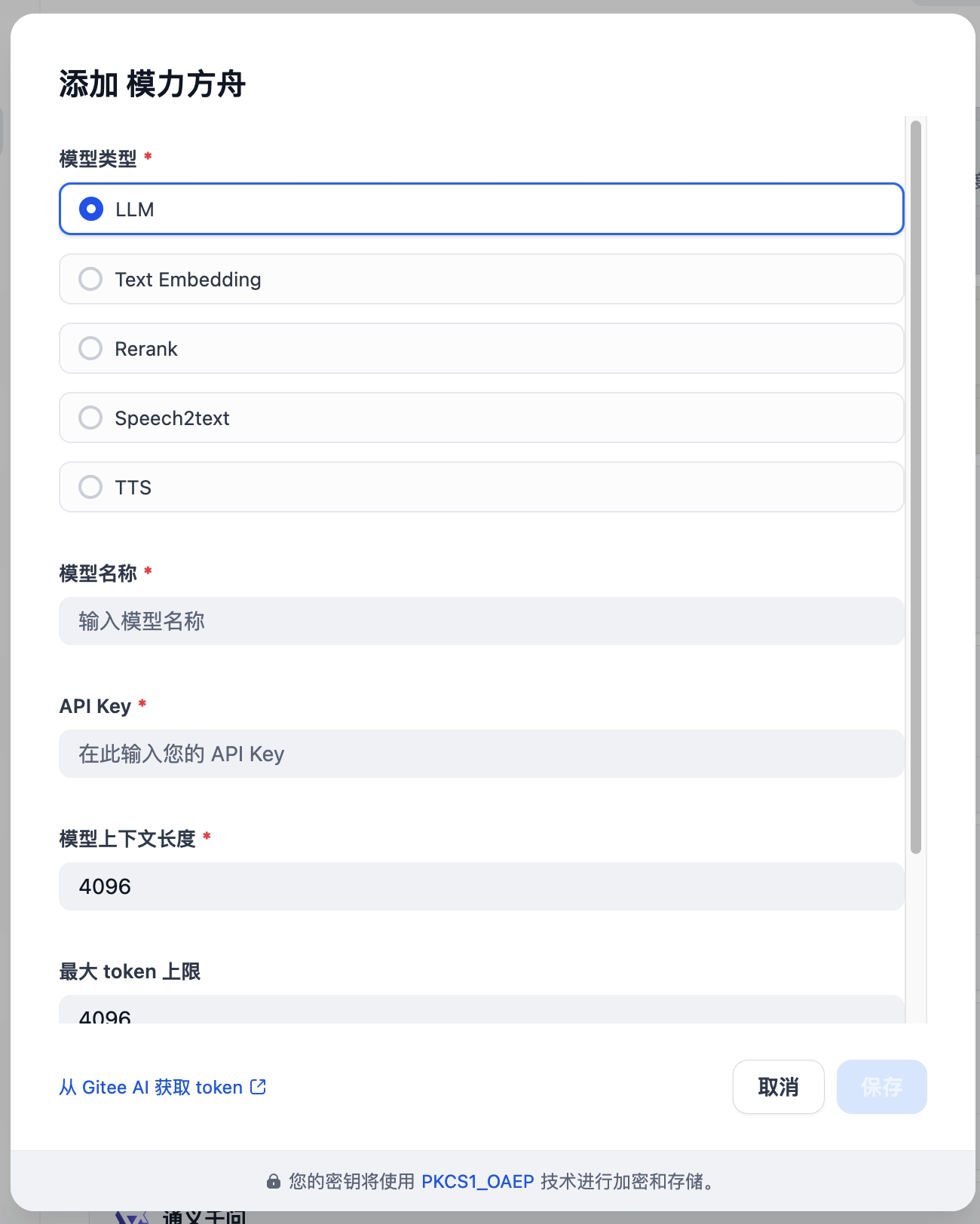
- Model Type: Select the model type based on your requirements
- Model Name: Choose from AI Model Square
- API Key: Obtain from Workbench->Settings->Access Tokens
- After configuration, you can see the newly added model in the model list.
 京公网安备11011502039387号