

OpenCode
OpenCode is a modern AI-powered coding assistant that supports multiple AI model providers. By configuring a custom Provider, you can easily integrate high-quality coding models from Moark.
Moark provides native support for OpenCode. You can use any of Moark's coding models to enjoy better Chinese language support and lower API costs.
1. Install OpenCode
The easiest way to install OpenCode is through the installation script.
Using Installation Script (Recommended)
curl -fsSL https://opencode.ai/install | bash
Using Node.js
npm
npm install -g opencode-ai
Bun
bun install -g opencode-ai
pnpm
pnpm add -g opencode-ai
Yarn
yarn global add opencode-ai
Using Homebrew (macOS / Linux)
brew install anomalyco/tap/opencode
We recommend using the OpenCode tap to get the latest version. The official brew install opencode is maintained by the Homebrew team and is updated less frequently.
Using Paru (Arch Linux)
paru -S opencode-bin
Windows Installation
Using Chocolatey
choco install opencode
Using Scoop
scoop bucket add extras
scoop install extras/opencode
Using NPM
npm install -g opencode-ai
Using Mise
mise use -g github:anomalyco/opencode
Using Docker
docker run -it --rm ghcr.io/anomalyco/opencode
Verify Installation
After installation, open your terminal and run:
opencode --version
If you see a version number, the installation was successful!
You can also download binary files directly from GitHub Releases.
2. Get MoArk Access Token
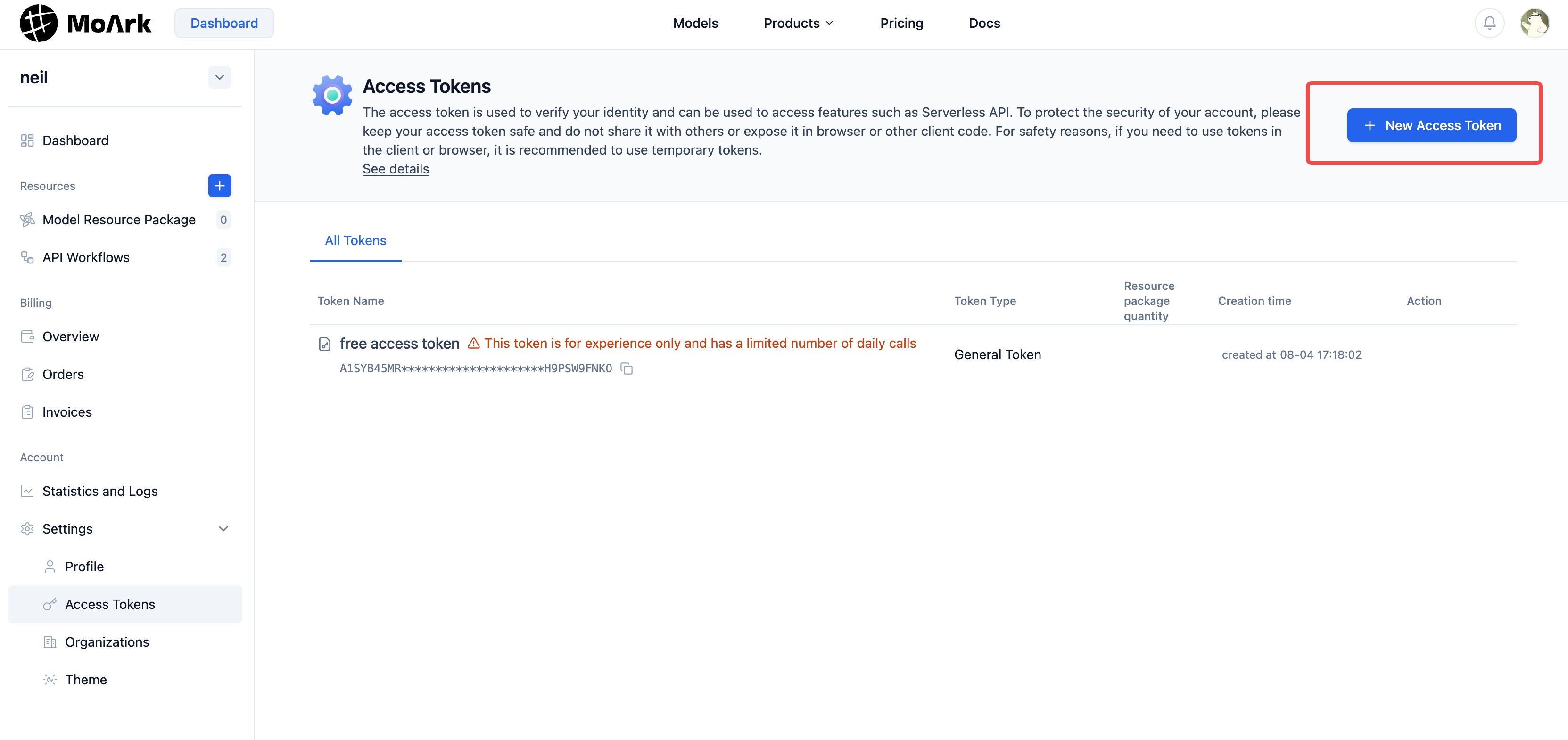
Go to Workbench->Settings->Access Tokens to create an access token. If you have not purchased a Serverless API package yet, you can start with the free trial token (daily call limits apply) for testing.
3. Configure OpenCode
OpenCode supports adding custom Providers through configuration files or command line. Below are two configuration methods.
Recommended Models:
MiniMax-M2.1(Primary Choice): Supports 200K tokens context window, ideal for large codebasesGLM-4.7: Zhipu's latest flagship model, supports 128K context with excellent performance
Method 1: Configuration via File (Recommended)
3.1 Create or Edit Configuration File
OpenCode configuration files can be placed in two locations:
- Global Configuration:
~/.config/opencode/opencode.json(applies to all projects) - Project Configuration:
opencode.jsonin project root directory (applies to current project only)
Use the following command to edit the configuration file:
# Edit global configuration
vim ~/.config/opencode/opencode.json

# Or edit project configuration
vim opencode.json
3.2 Add Moark Provider Configuration
Add the following content to your configuration file:
{
  "$schema": "https://opencode.ai/config.json",
  "provider": {
    "moark": {
      "npm": "@ai-sdk/openai-compatible",
      "name": "Moark",
      "options": {
        "baseURL": "https://api.moark.ai/v1",
        "apiKey": "your-api-key"
      },
      "models": {
        "MiniMax-M2.1": {
          "name": "MiniMax-M2.1",
          "limit": {
            "context": 200000,
            "output": 200000
          }
        },
        "GLM-4.7": {
          "name": "GLM-4.7",
          "limit": {
            "context": 200000,
            "output": 128000
          }
        }
      }
    }
  }
}
Configuration Details:
provider.moark: Custom Provider ID, you can name it yourself (moark is recommended)npm: Use OpenAI-compatible SDKname: Display name of the Provideroptions.baseURL: API base URLoptions.apiKey: Your API key (access token)models: List of available modelsname: Model display namelimit.context: Context window size (tokens)limit.output: Maximum output length (tokens)
We recommend setting the apiKey directly in the configuration file, but you can also use environment variables.
Method 2: Configuration via Environment Variables (Optional)
You can also configure the API Key through environment variables instead of writing it directly in the configuration file.
Windows (PowerShell)
Temporary Setup (Current Session)
$env:MOARK_API_KEY = "your-api-key"
Permanent Setup (User Level)
[System.Environment]::SetEnvironmentVariable("MOARK_API_KEY", "your-api-key", [System.EnvironmentVariableTarget]::User)
macOS / Linux / WSL2
Temporary Setup (Current Session)
export MOARK_API_KEY="your-api-key"
Permanent Setup
Add the following to your shell configuration file:
# For zsh (macOS default)
echo "export MOARK_API_KEY=your-api-key" >> ~/.zshrc
source ~/.zshrc

# For bash
echo "export MOARK_API_KEY=your-api-key" >> ~/.bash_profile
source ~/.bash_profile
Then reference the environment variable in your configuration file:
{
  "$schema": "https://opencode.ai/config.json",
  "provider": {
    "moark": {
      "npm": "@ai-sdk/openai-compatible",
      "name": "Moark",
      "options": {
        "baseURL": "https://api.moark.ai/v1",
        "apiKey": "${MOARK_API_KEY}"
      },
      "models": {
        "MiniMax-M2.1": {
          "name": "MiniMax-M2.1",
          "limit": {
            "context": 200000,
            "output": 200000
          }
        },
        "GLM-4.7": {
          "name": "GLM-4.7",
          "limit": {
            "context": 200000,
            "output": 128000
          }
        }
      }
    }
  }
}
Important: Remember to replace "your-api-key" with the actual access token obtained in Step 2.
4. Select Model
After configuration, launch OpenCode:
opencode
In the OpenCode interactive interface, use the /models command to select or switch models:
/models
Then select the model you want to use from the model list.
5. Start Using OpenCode
After configuration, you can start using OpenCode! Run in any directory:
opencode
This will launch the OpenCode interactive interface, and you can start conversing with the AI coding assistant.
Common Commands
Launch OpenCode
opencode
Switch Models in OpenCode
After entering OpenCode, use the following command:
/models
Troubleshooting
1. Unable to Connect to API
Symptoms: Connection failure or network error
Solutions:
- Verify that
baseURLis correctly configured ashttps://api.moark.ai/v1 - Confirm network connection is working
- Check if proxy configuration is needed
2. Invalid API Key
Symptoms: Authentication failure or invalid API Key error
Solutions:
- Confirm you have obtained the access token correctly from the Moark platform
- Check if the API Key was copied correctly (no extra spaces)
- Try regenerating the access token
3. Model Unavailable
Symptoms: Cannot use model after selection
Solutions:
- Verify the model ID is correct (check AI Model Marketplace)
- Confirm your account has permission to use the model
- Check if the model configuration in the config file is correct
4. Configuration File Not Taking Effect
Symptoms: No changes after modifying configuration
Solutions:
- Confirm the configuration file path is correct
- Check if JSON format is valid (use a JSON validator)
- Exit and restart OpenCode
 京公网安备11011502039387号