

N8N
n8n is a powerful open-source low-code workflow automation tool.
It provides an intuitive visual interface that lets you connect various applications and services simply by dragging and dropping “nodes,” like building a flowchart — allowing you to create powerful automated workflows.
Whether you are a developer or a business user, n8n is easy to use.
The Serverless API supports invocation within N8N, following these steps:
Obtain Access Token
- Log in to the MoArk official website and complete account registration (log in directly if you already have an account).
- Go to the Workbench, click the top-right Settings, and select Access Tokens.
- Generate and copy your dedicated access token for later use.
Integrate MoArk Models into N8N
MoArk’s API is compatible with OpenAI’s SDK, meaning you can access MoArk models using the built-in OpenAI Chat Model node in N8N.
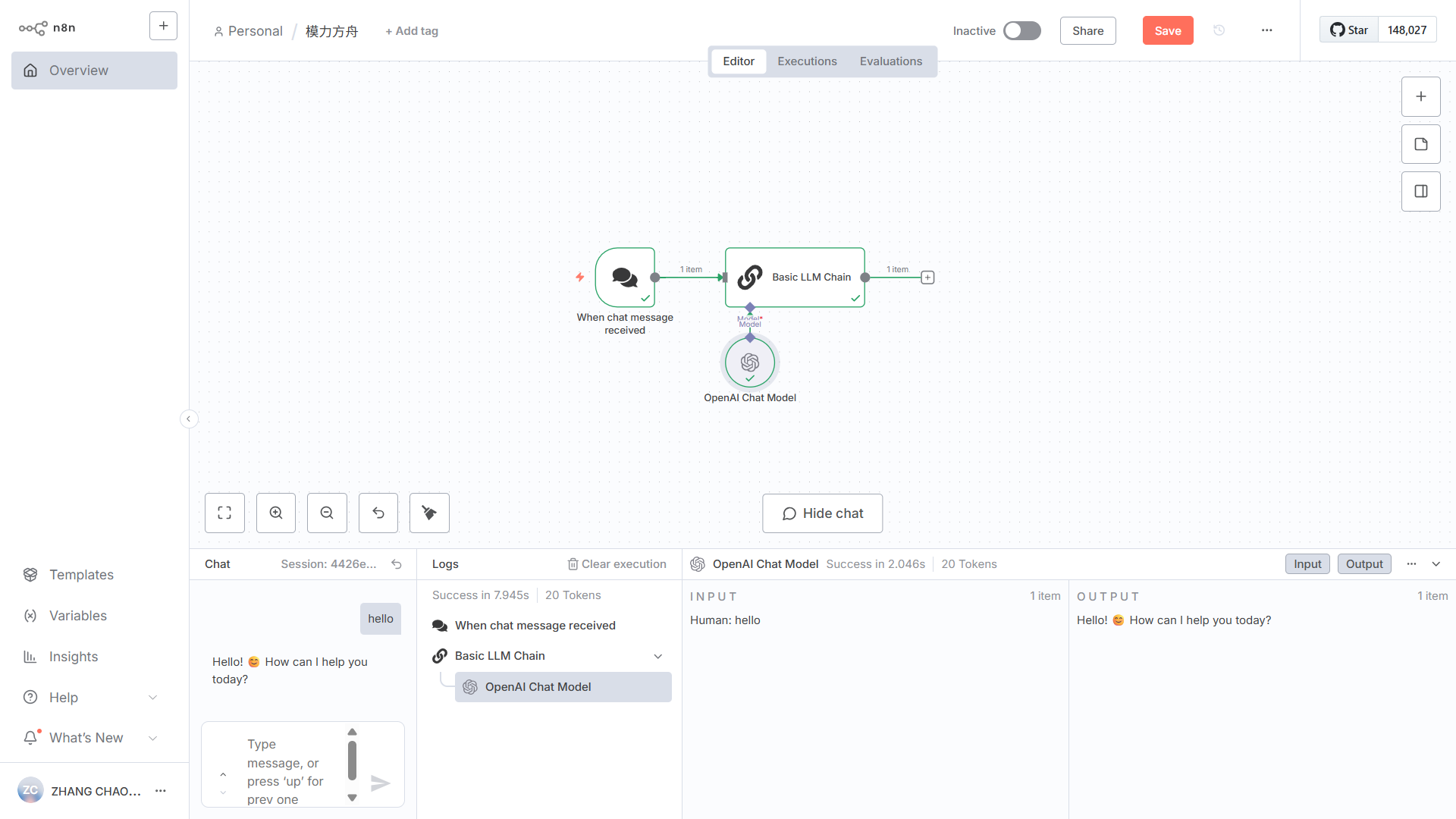
OpenAI Chat Model Node
Configure the MoArk model endpoint and access token through the OpenAI Chat Model node to quickly enable the model for application development.
This node is used for text-generation models such as DeepSeek-V3 and GLM 4.6.
For image or audio generation models, you can use OpenAI’s Generate audio, Generate an image, or HTTP Request nodes.
-
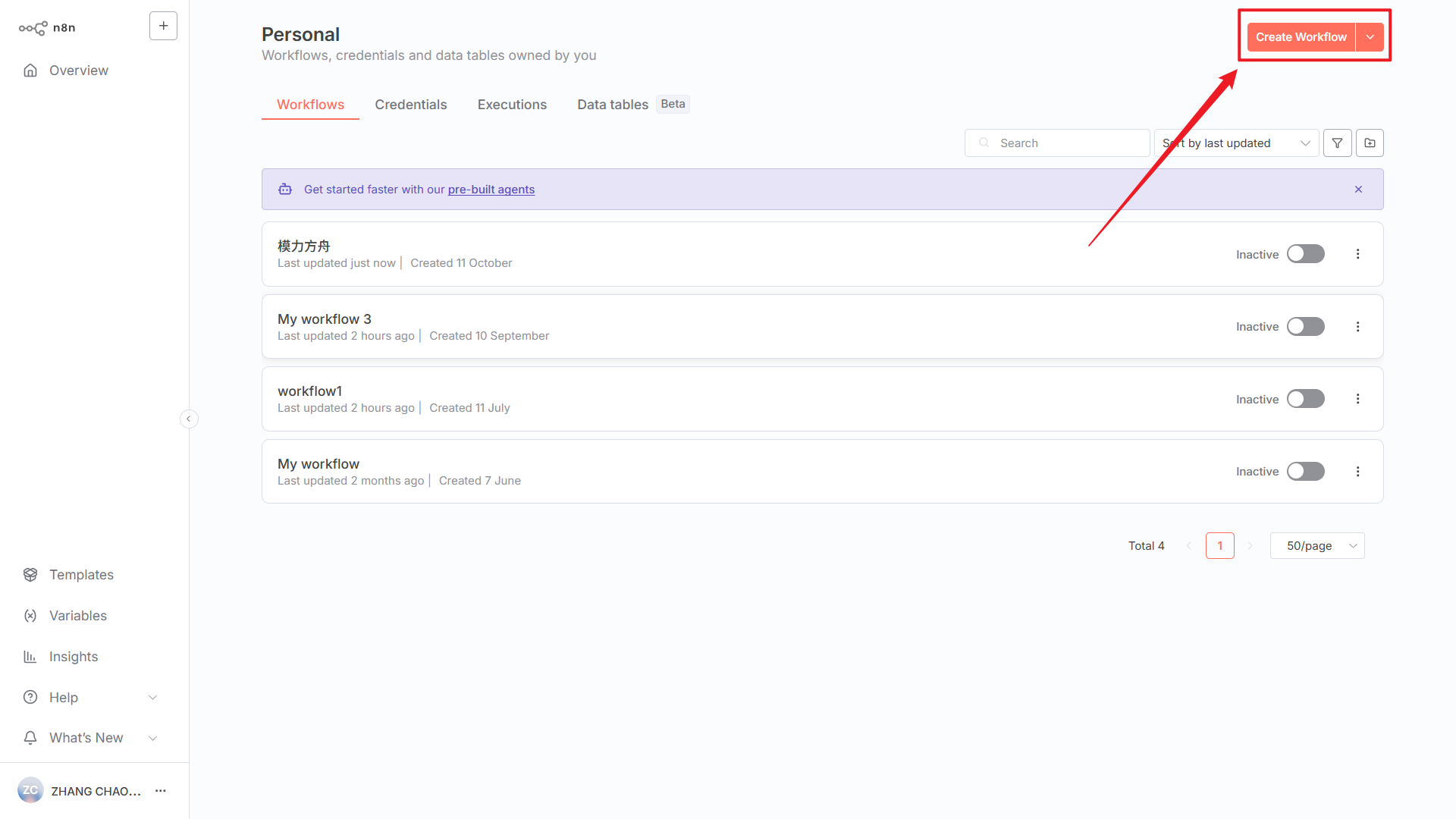
Open and log in to N8N, then create or enter a Workflow.
-
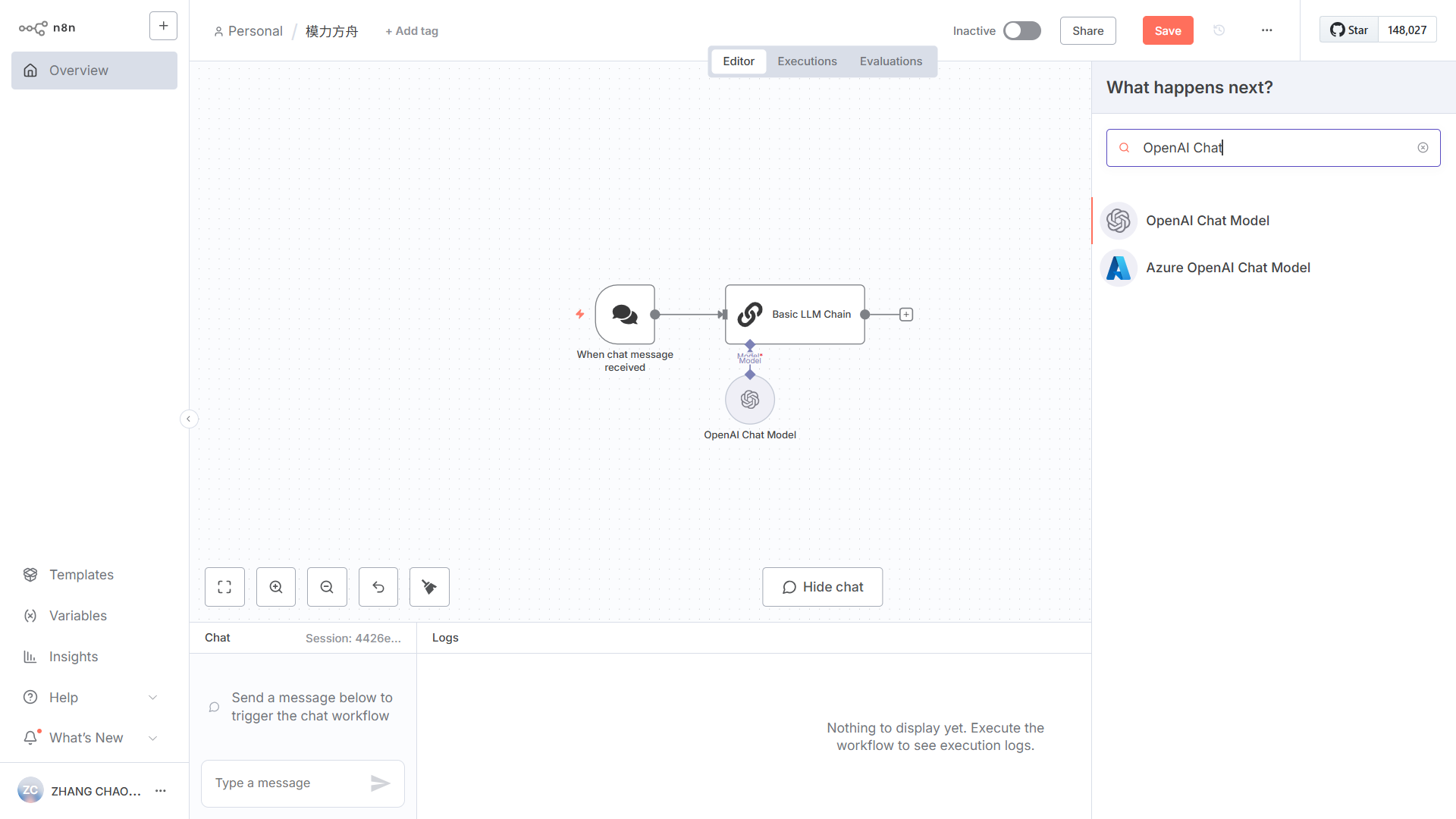
Add a new node: OpenAI Chat Model.
-
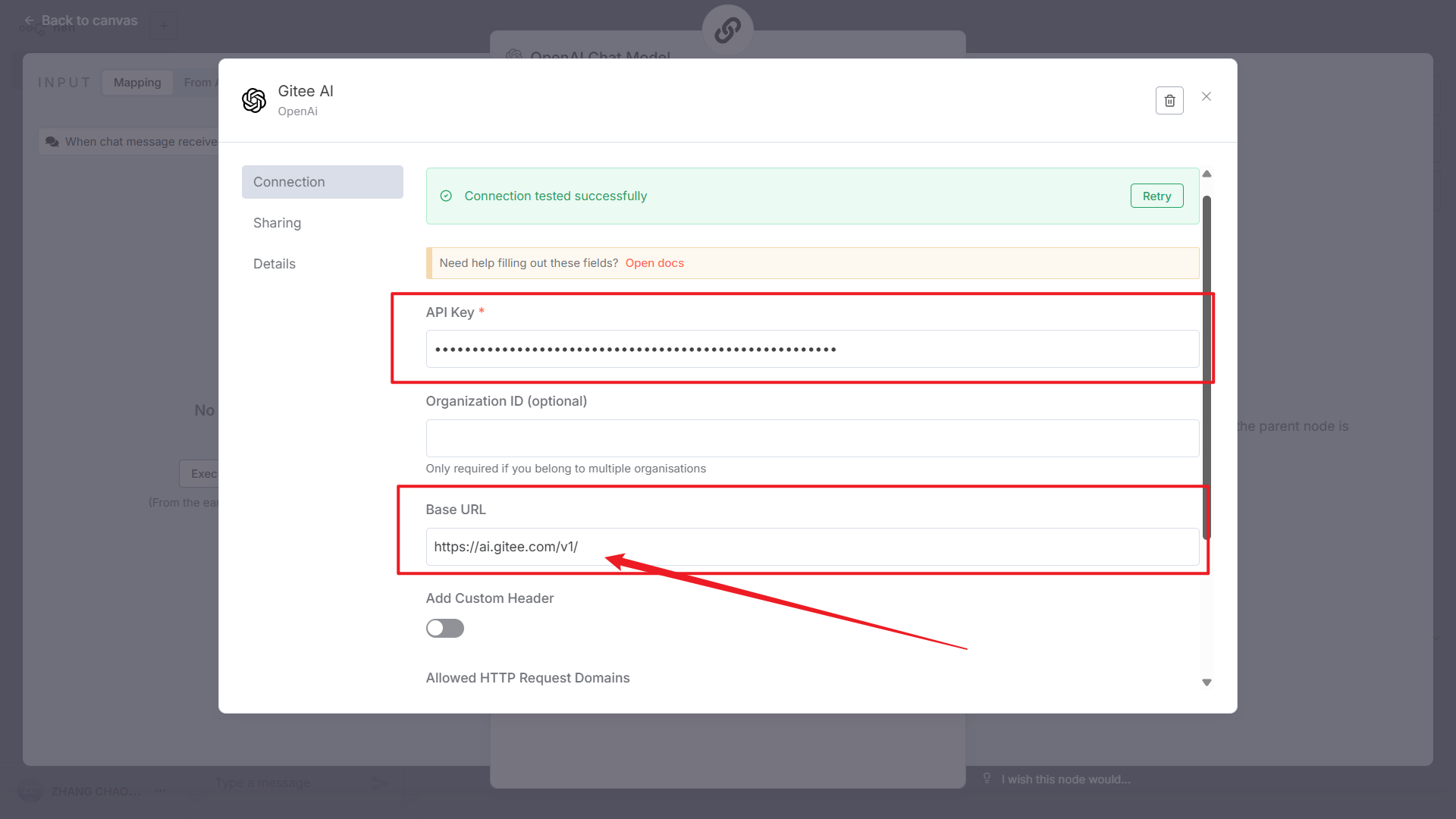
Enter the node and click Create new credential to create a new API provider.
- API KEY: Enter the access token copied earlier.
- Base URL: Enter MoArk’s model endpoint:
https://api.moark.ai/v1/.
-
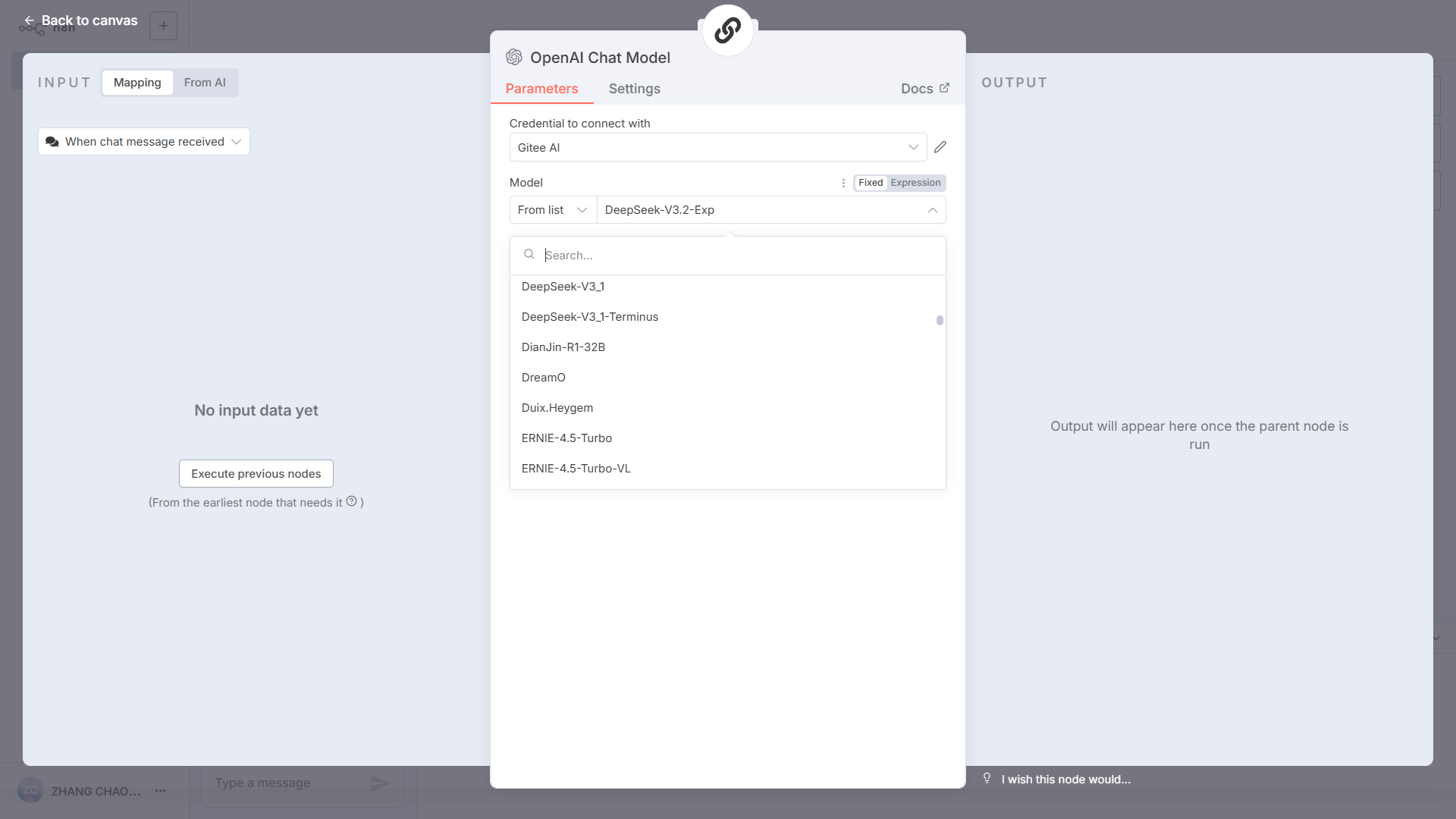
Choose the desired model.
-
Exit the node and go to the Chat panel to start interacting — you now have an Agent built on MoArk’s platform.
OpenAI Generate Audio / Generate Image Nodes
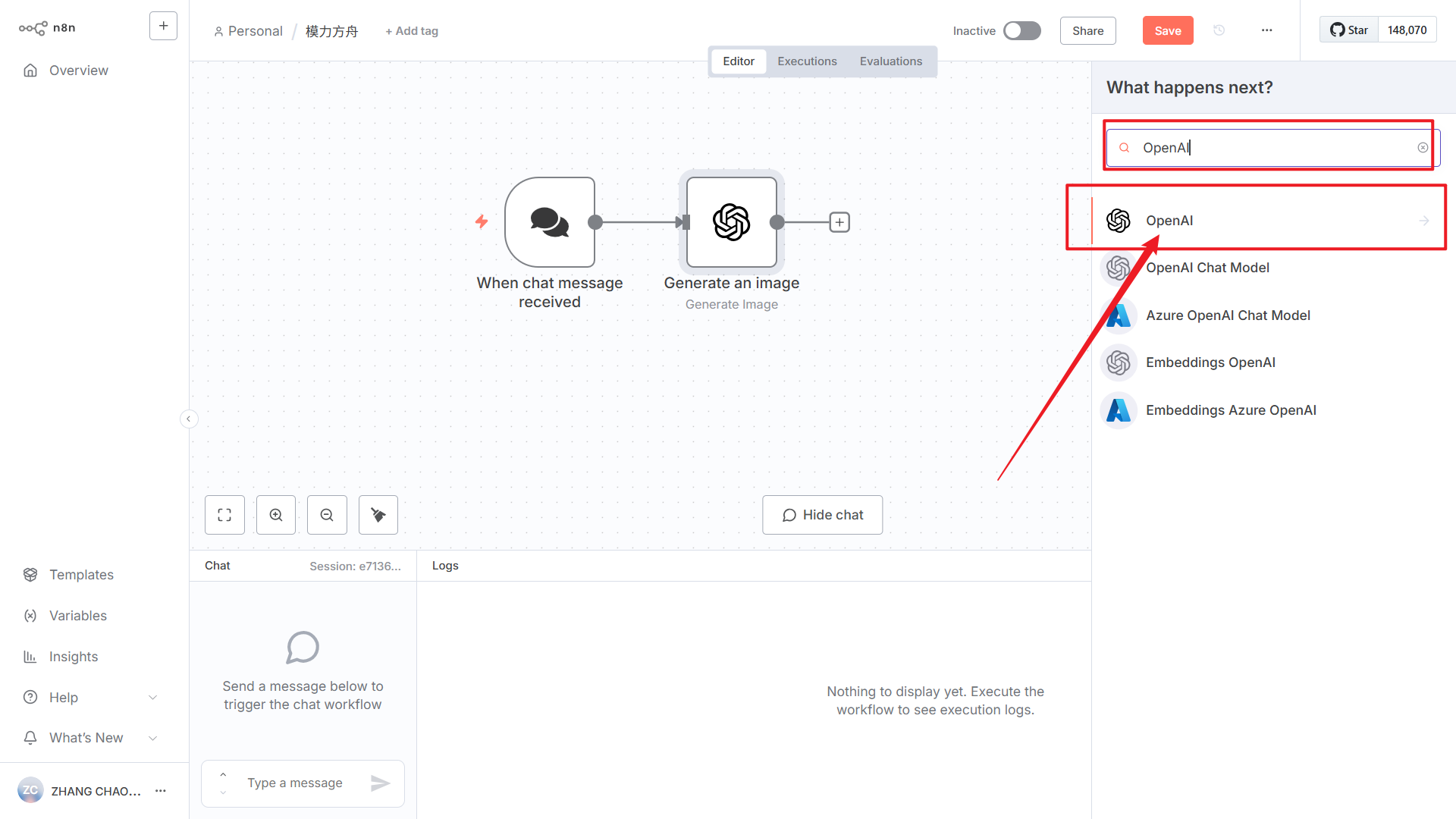
To use MoArk’s image or audio generation models, call them via OpenAI’s Generate audio or Generate an image nodes.
-
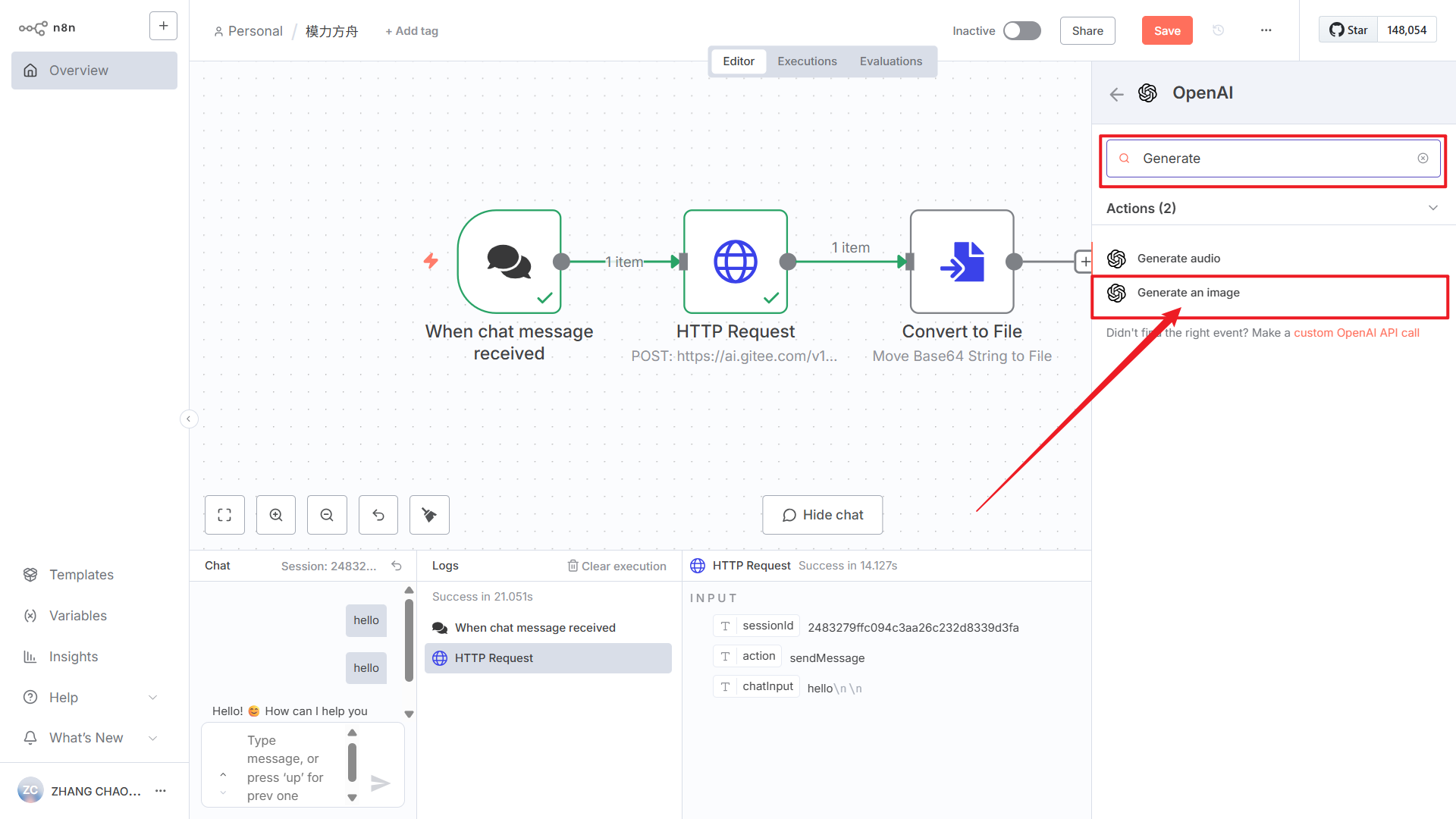
Search for the OpenAI node, then select the Generate an image node.
-
Enter the node and click Create new credential to create a new API provider.
- API KEY: Enter the previously copied access token.
- Base URL: Enter MoArk’s model endpoint
https://api.moark.ai/v1/.
-
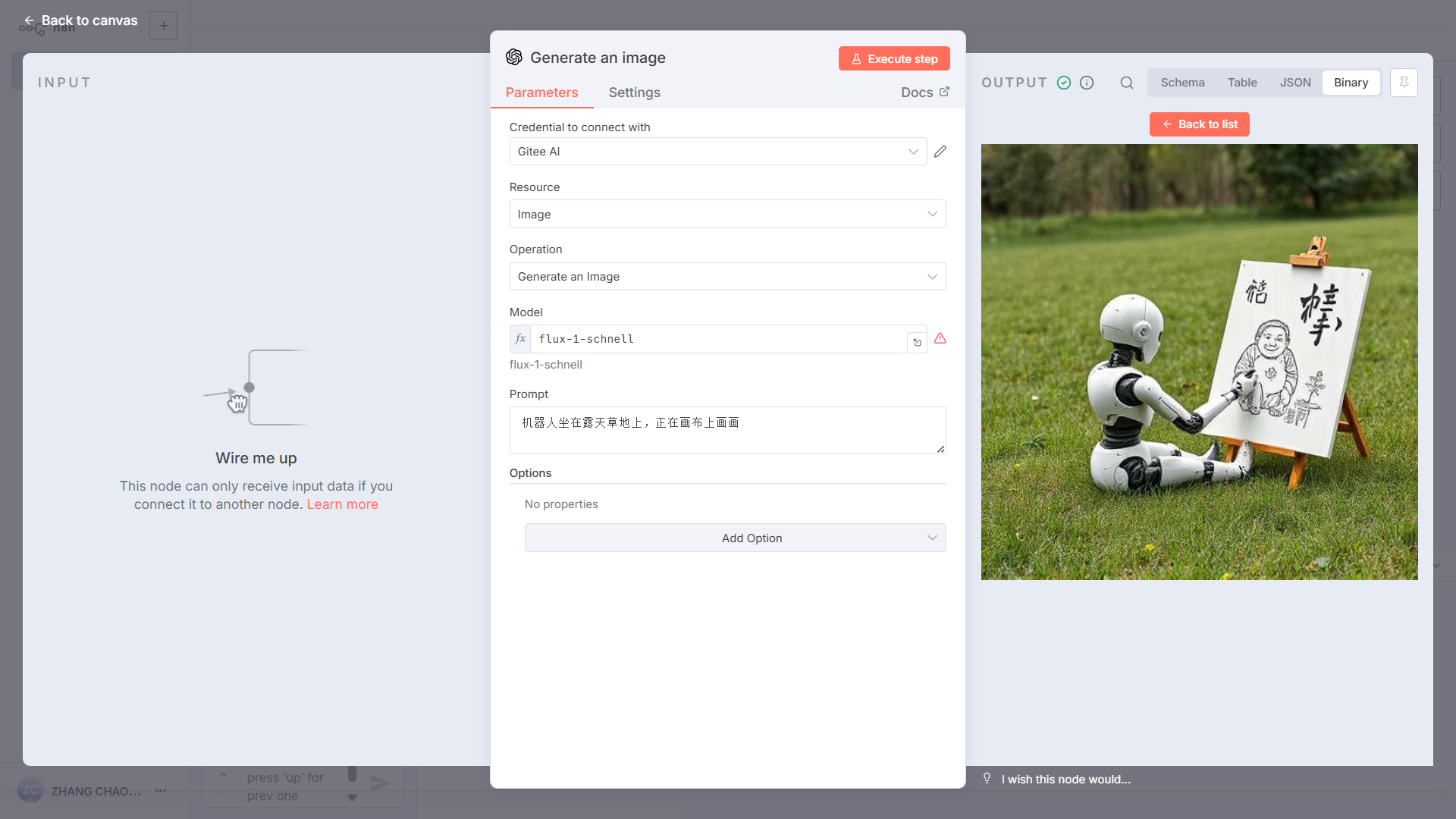
Enter the model name to be called.
For the Model parameter, input MoArk’s model name. Before entering, change the mode from Fixed to Expression.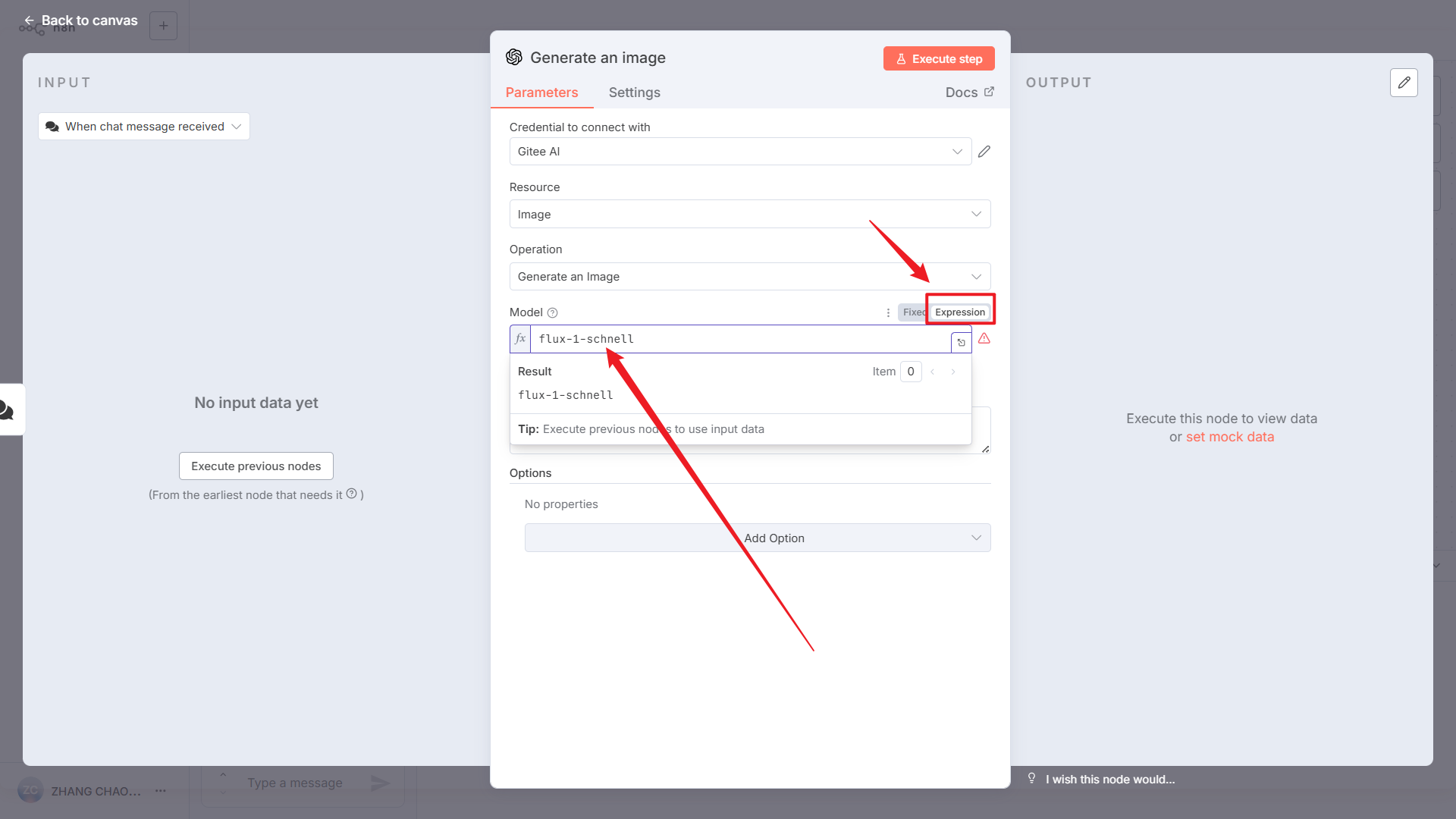
-
Enter your Prompt, click Execute step, and call the model.
HTTP Request Node
In addition to OpenAI nodes, you can also call models using the HTTP Request node.
-
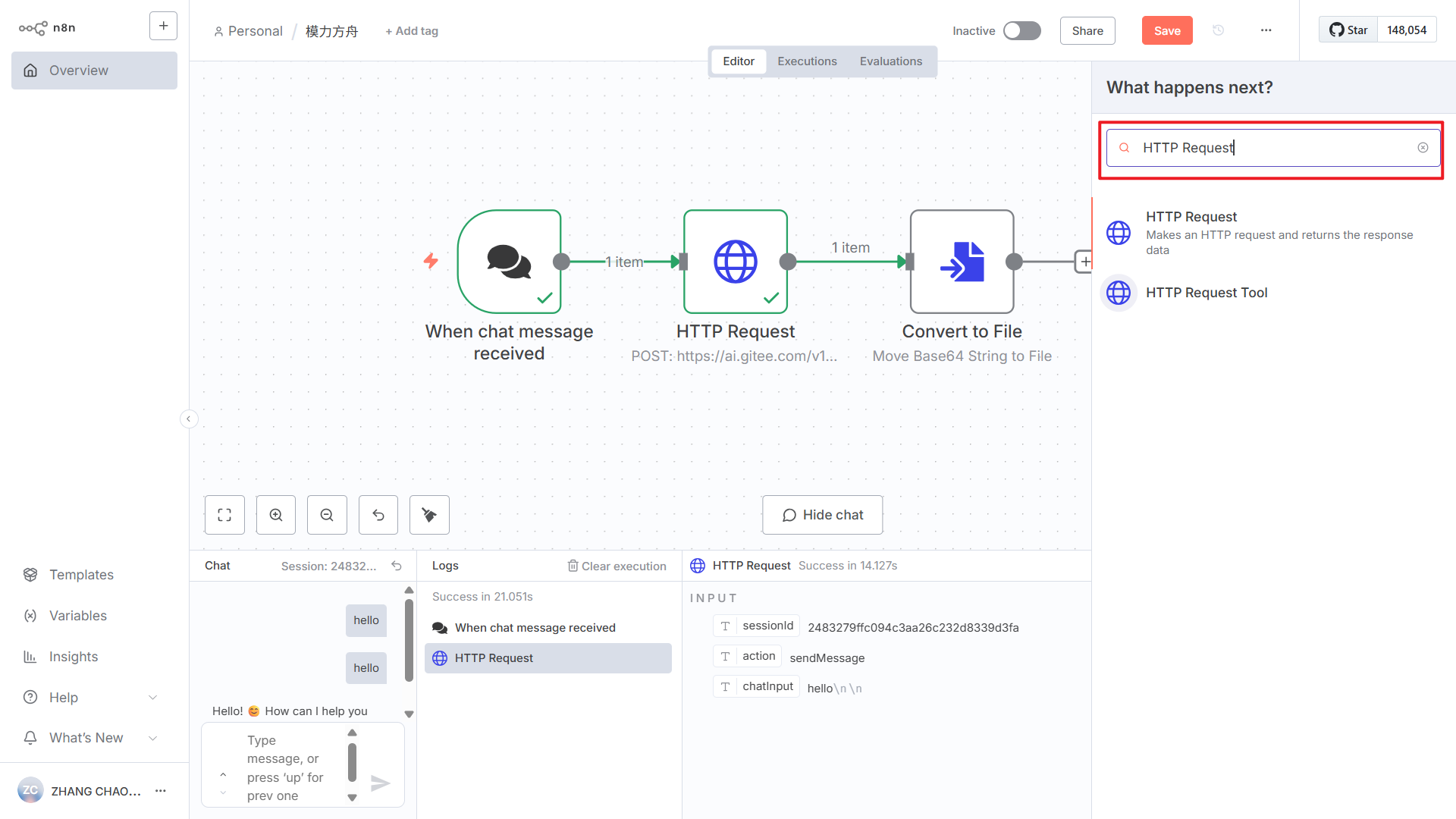
Add a new node: HTTP Request.
-
Configure the request URL and parameters.
Each model’s request structure may vary slightly — for details, please refer to the API Documentation.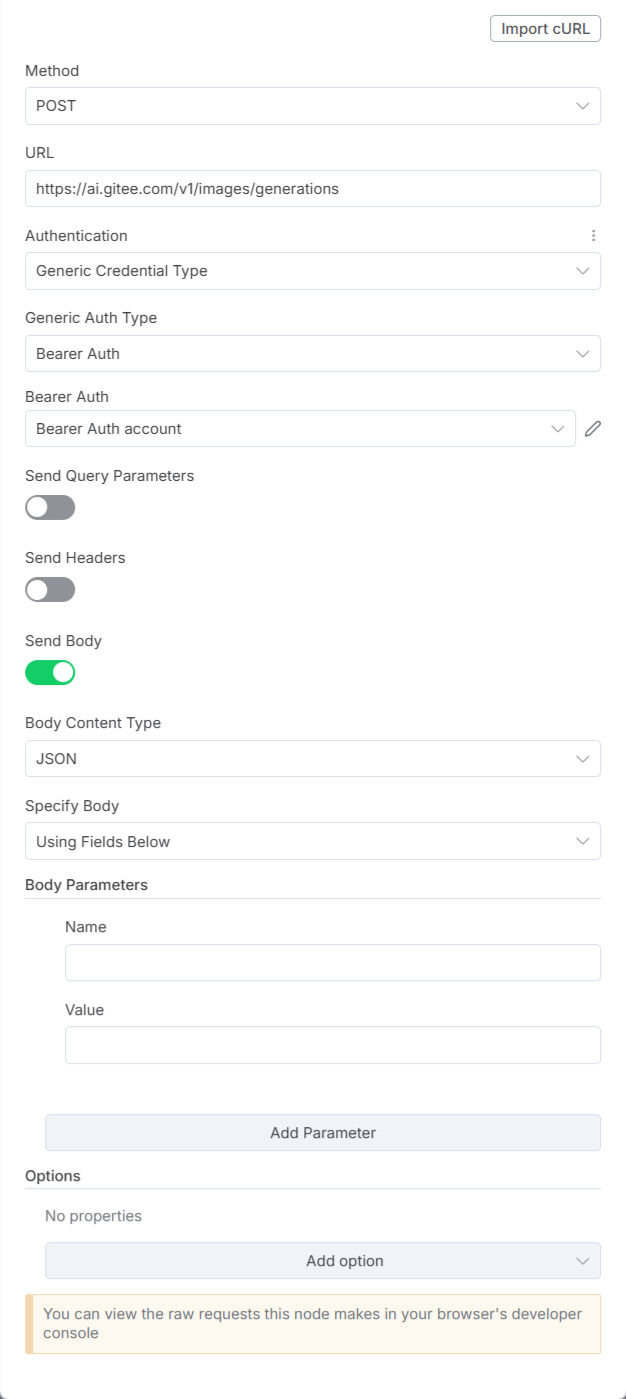
- Method: POST
- URL:
https://api.moark.ai/v1/images/generations - Authentication: Generic Credential Type
- Generic Auth Type: Bearer Auth
- Bearer Auth: Click Create new credential and enter your MoArk access token
- Send Body:
-
Body Content Type: JSON
-
Specify Body: Using JSON
-
JSON Example:
{"prompt": "A robot sitting on the grass painting on a canvas","model": "flux-1-schnell","size": "1024x1024","guidance_scale": 7.5,"seed": 42}
-
-
Click Execute step to invoke the model.
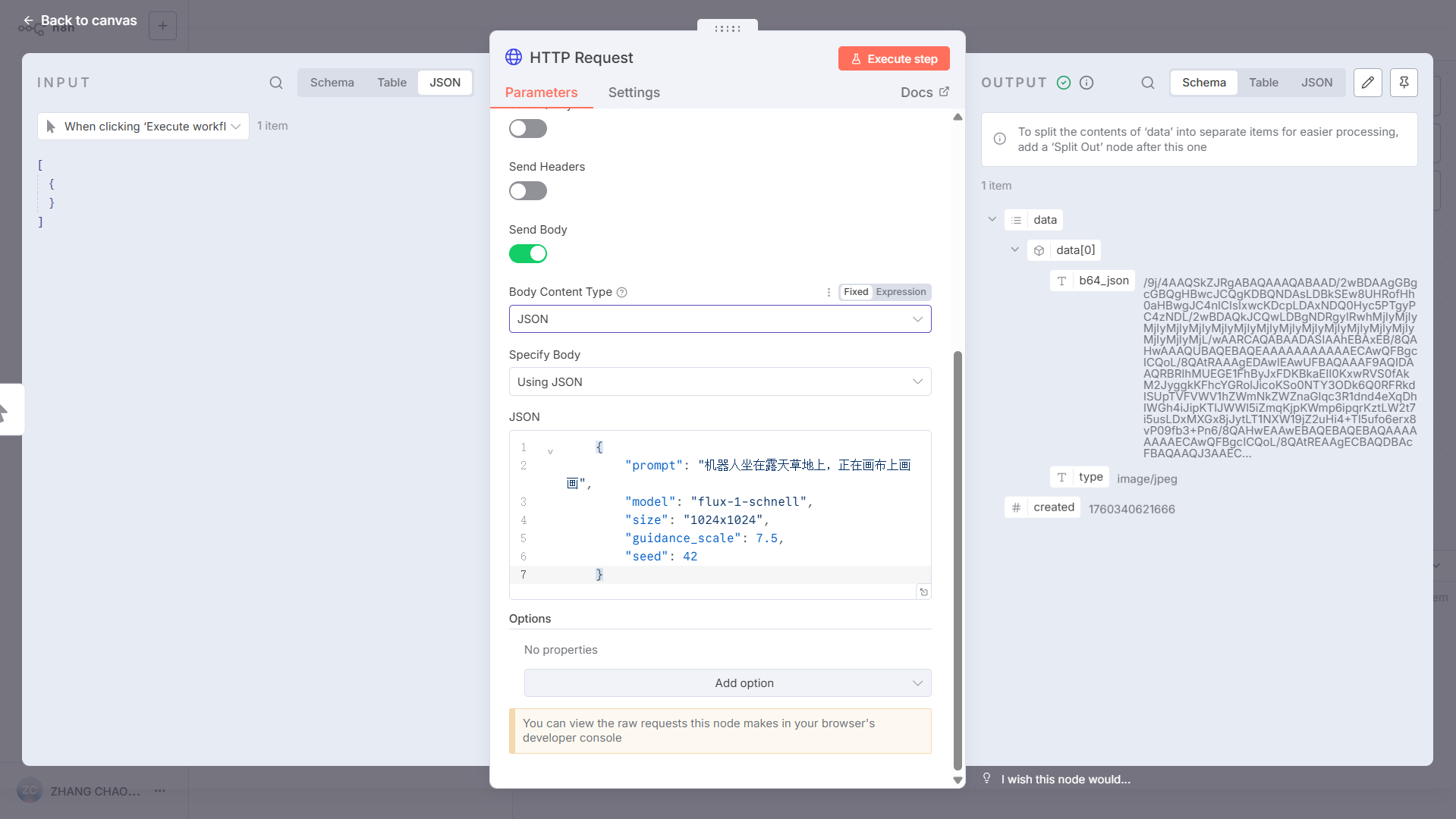
When calling image or audio generation models via HTTP Request, the API returns a base64-encoded result.
You can then add a Convert to File node to convert it into a viewable image or audio file.
 京公网安备11011502039387号