

Text Generation
Model Categories
Model Power Ark currently supports fine-tuning for multiple pure text dialogue models in the Qwen2.5 and Qwen3 series. More model fine-tuning support is being rolled out gradually, stay tuned.
Dataset Preparation
Dataset Types
For pure text datasets, we currently support OpenAI's messages dialogue format. More types will be supported in the future. A typical dataset format for one round of dialogue is as follows:
{
  "messages": [
    {
      "role": "system",
      "content": "System prompt (optional)"
    },
    {
      "role": "user",
      "content": "User's question content"
    },
    {
      "role": "assistant",
      "content": "Language model's response content"
    }
  ]
}
- One round of dialogue data consists of one
messagesJSON data, containing three roles:system,user, andassistant, withcontentcontaining the session content for that role. systemrepresents the "system prompt". There can only be one per dialogue round and it must be the first. It is content with high instruction weight, used to initially standardize the model's general behavior.userandassistantrepresent "user prompt" and "model response" respectively. During training, the model learns the content ofassistantbased on the conversation records, so the dataset must contain at least one pair of user and assistant Q&A.- Dialogue length is not limited;
userandassistantsession content can have more than one entry.
Dataset Storage Format
We currently only support the jsonl storage format. The file content consists of multiple lines of message dialogue data, with example content as follows:
{"messages": [{"role": "system", "content": "you are a helpful assistant. "}, {"role": "user", "content": "What is a large language model?"}, {"role": "assistant", "content": "A Large Language Model (LLM) is a deep learning model trained on massive amounts of text data, capable of generating natural language text or understanding the meaning of language text. It is an important tool in the field of natural language processing and can handle various natural language tasks."}]}
{"messages": [{"role": "system", "content": "you are a helpful assistant. "}, {"role": "user", "content": "Please prove Fermat's Last Theorem"}, {"role": "assistant", "content": "Since the proof of Fermat's Last Theorem is very complex and involves advanced mathematical concepts, I cannot provide a complete proof process here."}]}
{"messages": [{"role": "system", "content": "you are a helpful assistant. "}, {"role": "user", "content": "What causes thermal expansion and contraction?"}, {"role": "assistant", "content": "Thermal expansion and contraction is a fundamental property of matter, primarily caused by the microscopic structure within materials and interactions between particles."}, {"role": "user", "content": "Thank you for your answer!"}, {"role": "assistant", "content": "You're welcome, I'm glad I could help. Do you have any other questions?"}]}
You can also download this file for reference 示例训练数据文件.
Model Fine-tuning
Fine-tuning Types Introduction
SFT (Supervised Fine-tuning)
Supervised Fine-tuning (SFT) continues training an existing model using a standardized dataset containing clear questions and answers, so that the final trained model generates content as similar as possible to the dataset. Possible scenarios for applying SFT fine-tuning include:
- Improving model capabilities in specific domains or scenarios: The original pre-trained model's Q&A performance is poor in specific scenarios or tasks. By training with data content from these domains or scenarios, the model can learn the response content, format, tone, etc., in these scenarios to enhance corresponding capabilities.
- Training with limited data: SFT fine-tuning does not require massive data like pre-training; only a small amount of high-quality data is needed to enable the model to achieve expected responses at lower cost.
- Knowledge distillation: Often in industry, only a specific strong capability of a model is needed, but the model is too large, leading to high usage costs. By using data generated by this model to continue training a lower-cost model that can achieve expected results for deployment, usage costs for specified projects can be significantly reduced.
Entering the Training Interface
First, on our model square homepage, click "Dashboard" to enter the personal homepage, as shown below:

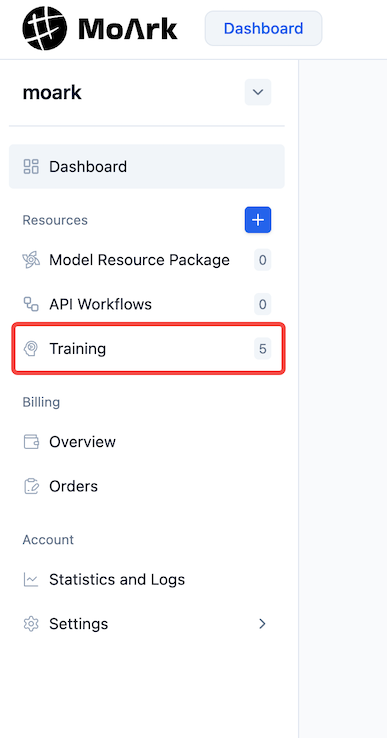
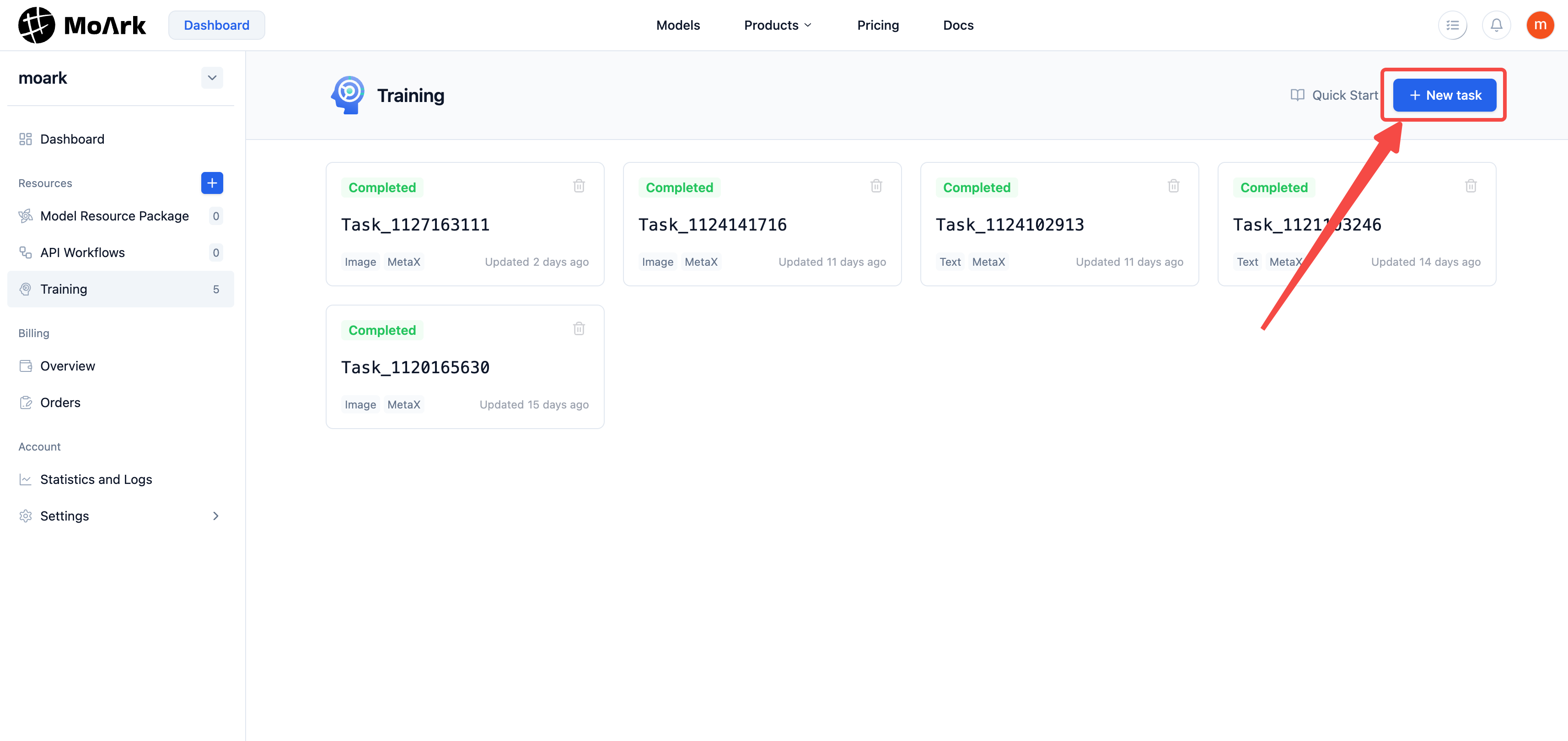
After entering the personal homepage, click "Model Fine-tuning" in the left sidebar to enter the personal fine-tuning overview interface. As shown below:
In the upper right corner of the personal fine-tuning overview, click "New Task" to create a new fine-tuning task.
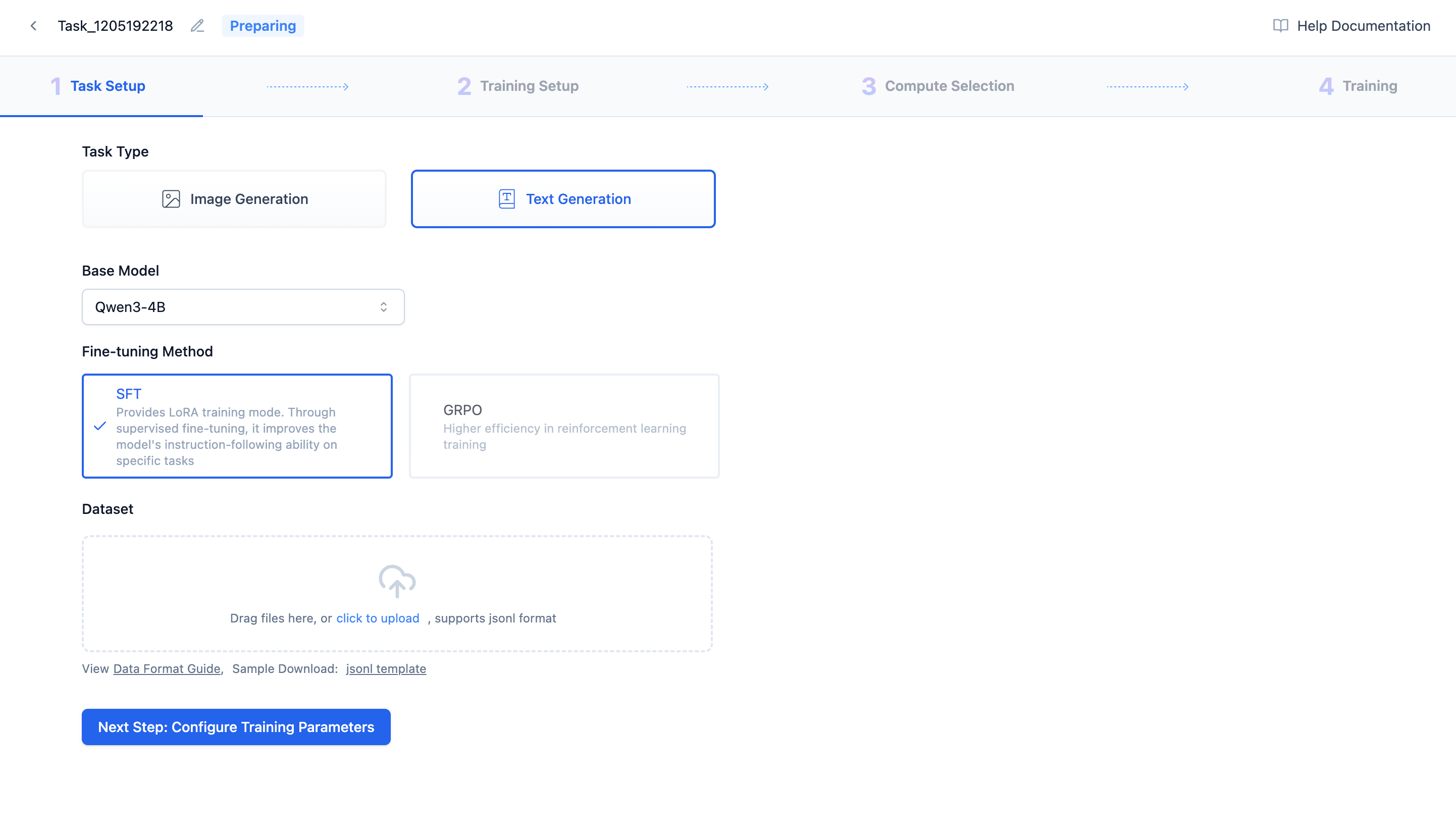
First, give the new task a distinctive name, select "Text Generation", choose the fine-tuning method and base model, upload the dataset, and you can happily begin your training journey~
Configuring Training Parameters
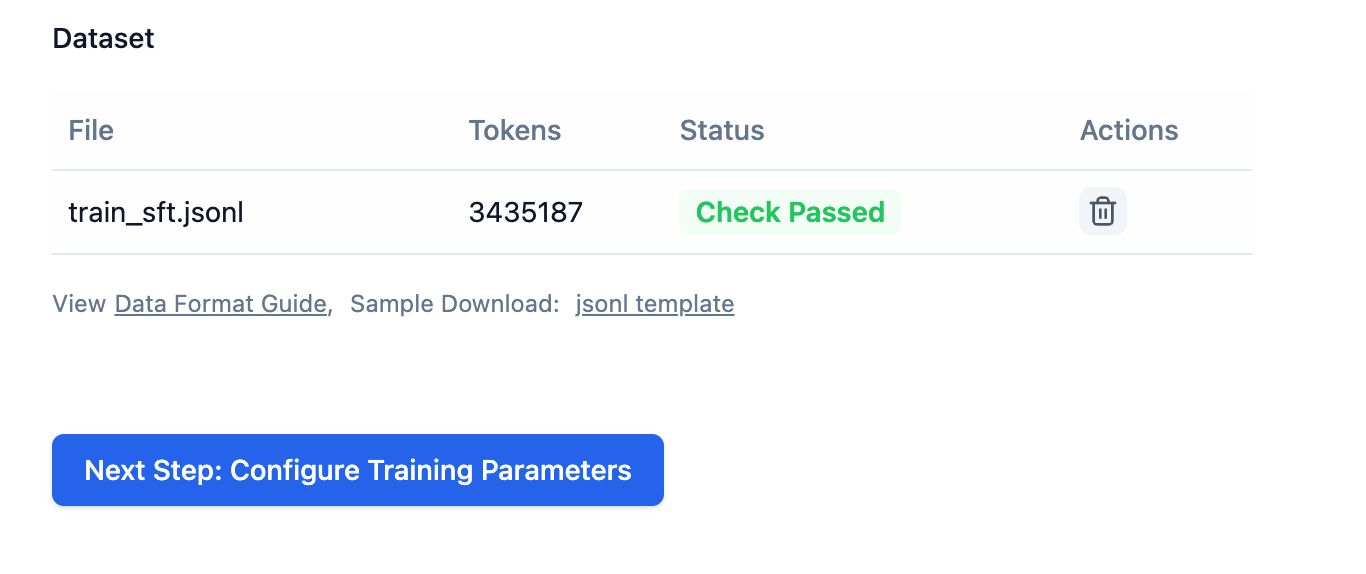
After uploading the dataset, if the dataset check passes, you can click Next, Configure Training Parameters:
Before the training task begins, you need to configure some parameters. You can adjust training parameters based on the explanations.
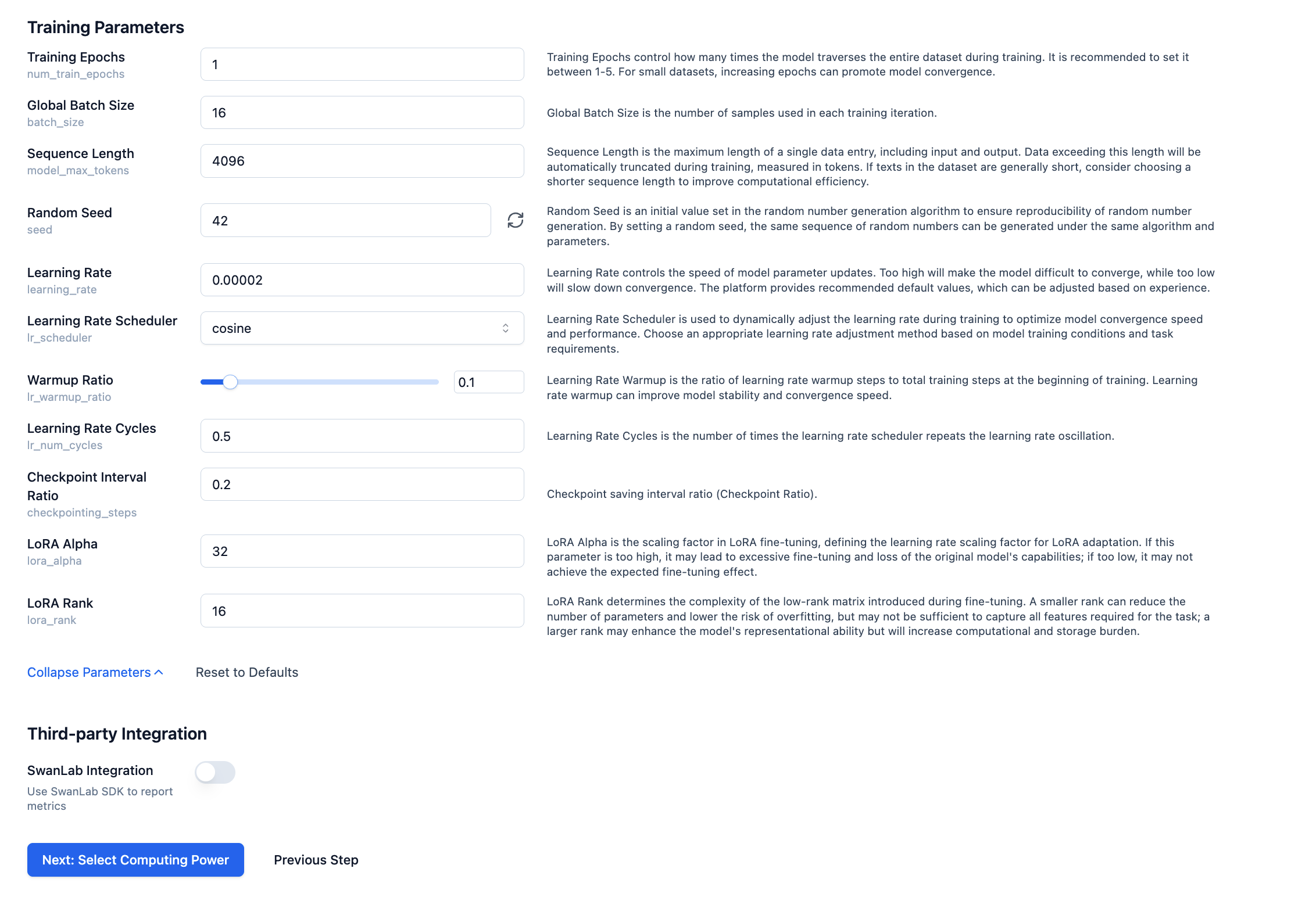
After setting the relevant training parameters, click Next to select computing power.
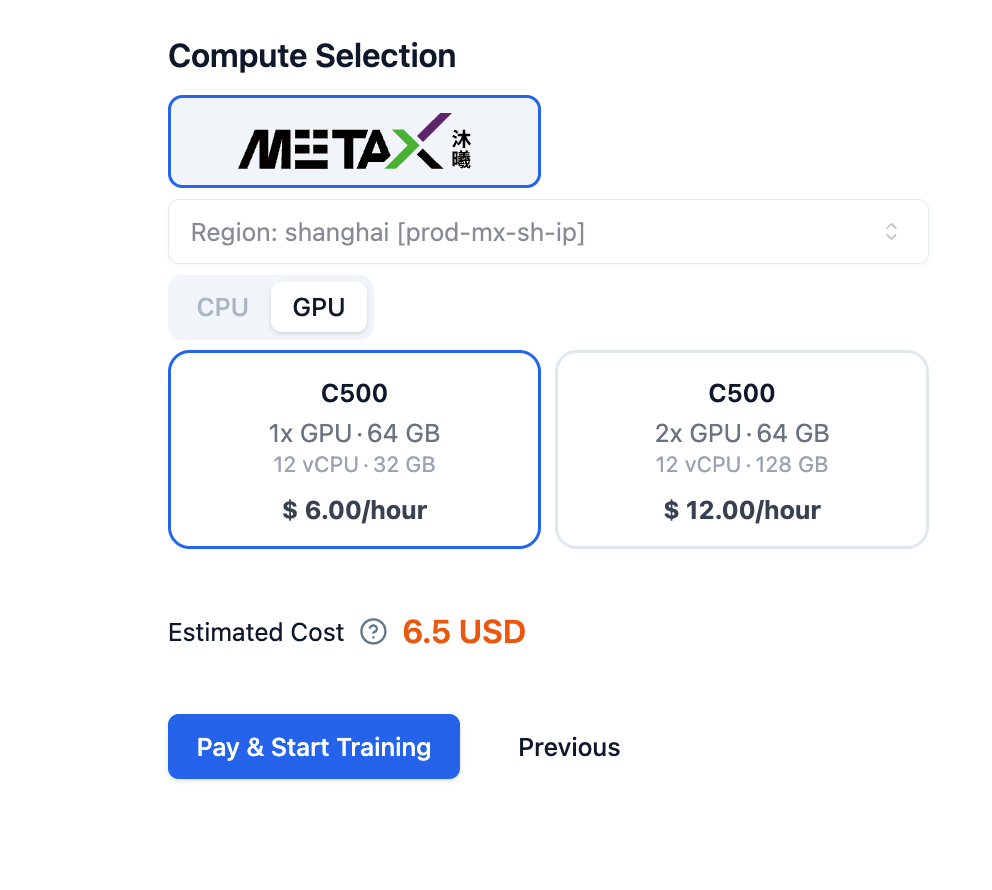
Next, you can click Pay and Start Training. After success, click to view resources, as shown below:
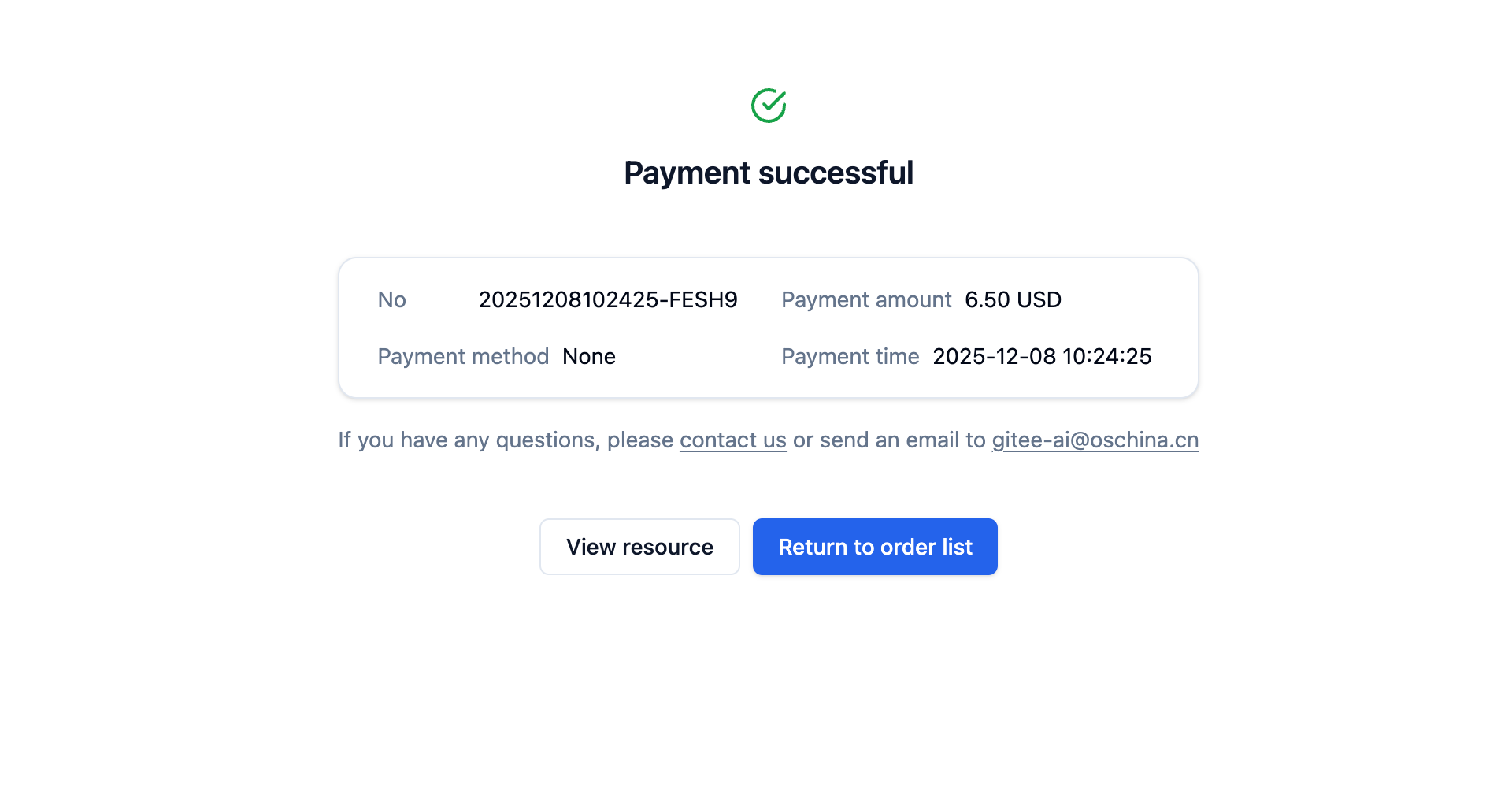
After that, you can see your training progress and results on the training page~
Training and Saving
When first entering the training page, you need to queue for GPU resources. After successful training initialization, as shown below, it indicates training has begun.
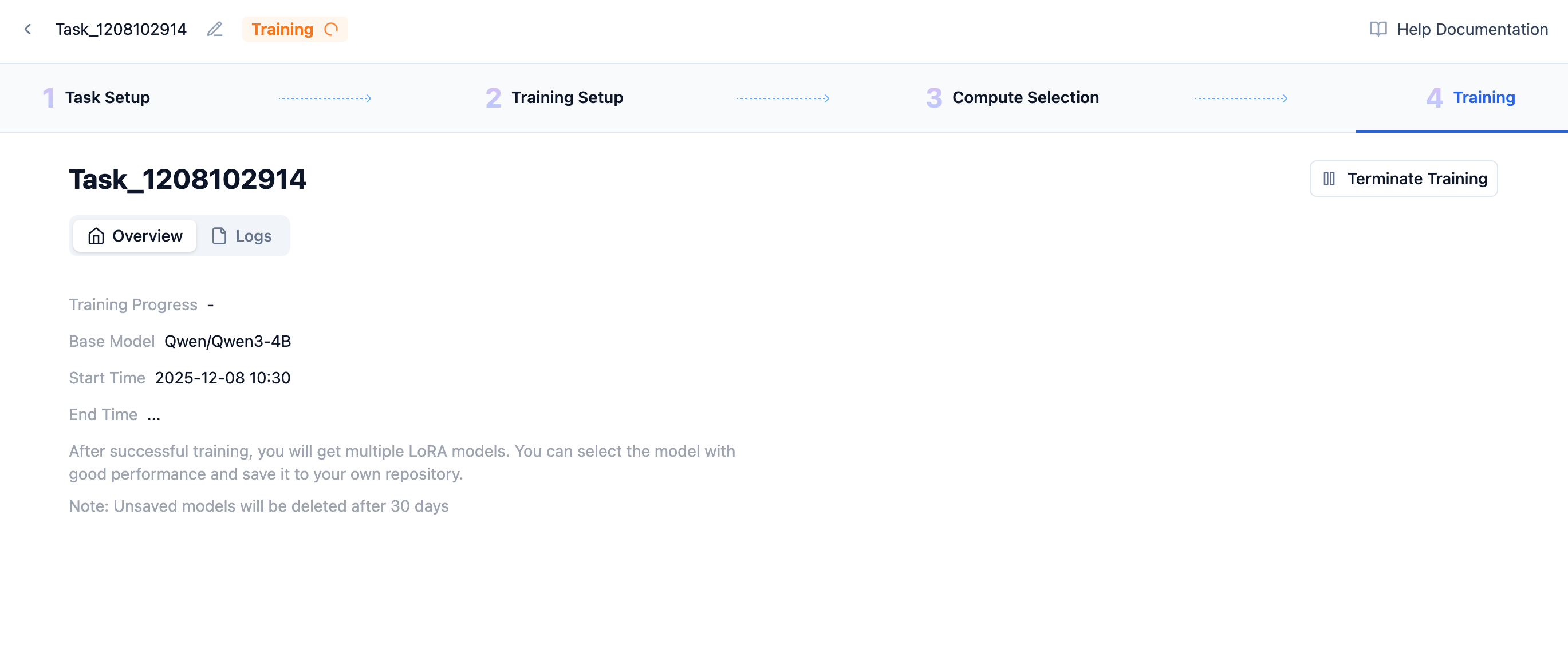
You can see training progress, time, and other LoRA information here. A complete training-end LoRA is shown below:
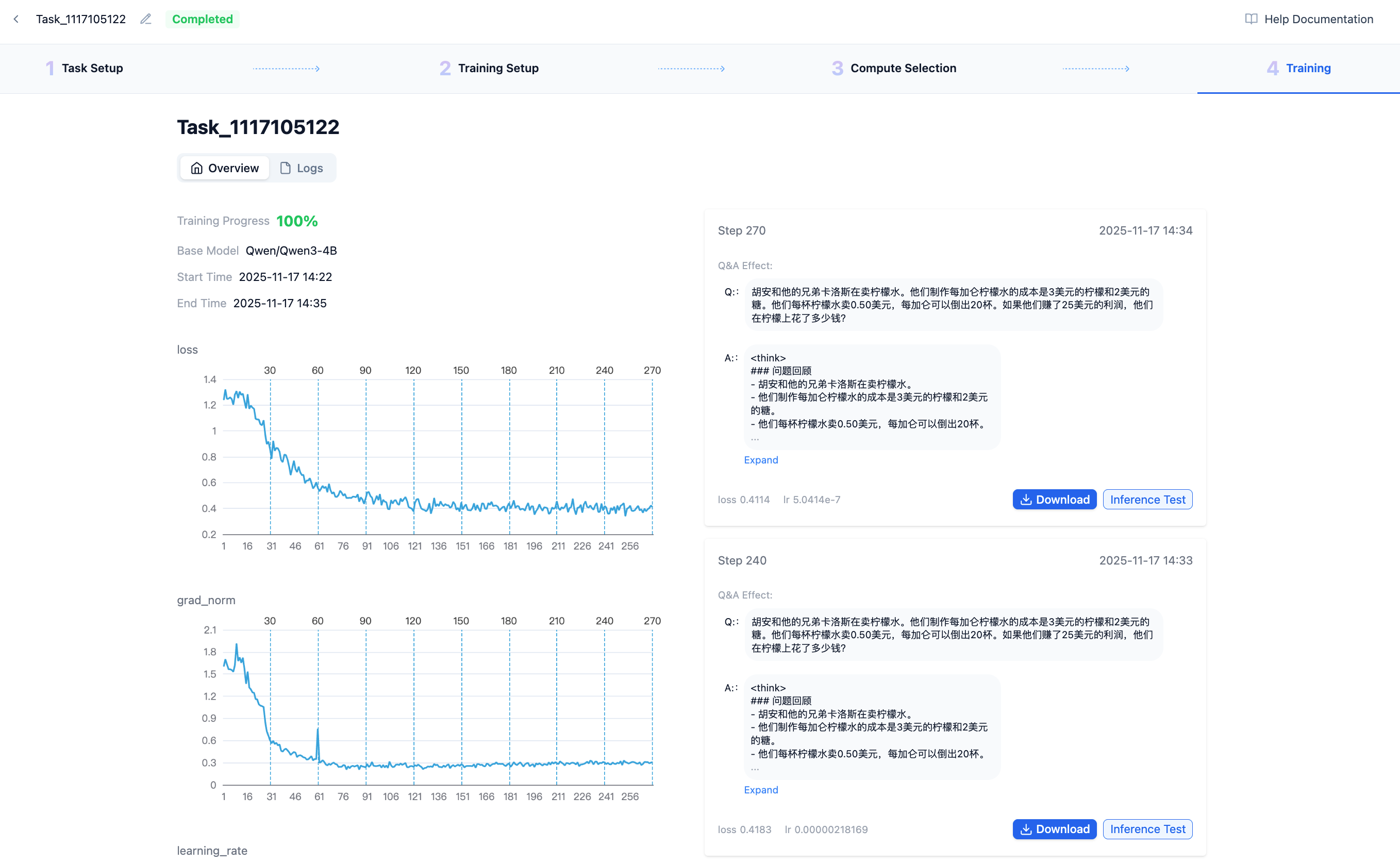
- The left column displays some important training process metrics that can reflect training quality from indicators and help terminate poor training promptly.
- The right column shows each completed LoRA checkpoint. We pre-extract an automatically generated result from your data to judge whether the generated results align with your training data preferences as training-generated content changes.
If you think a certain LoRA step meets preliminary requirements, you can click "Effect Test", which will open the popup below:
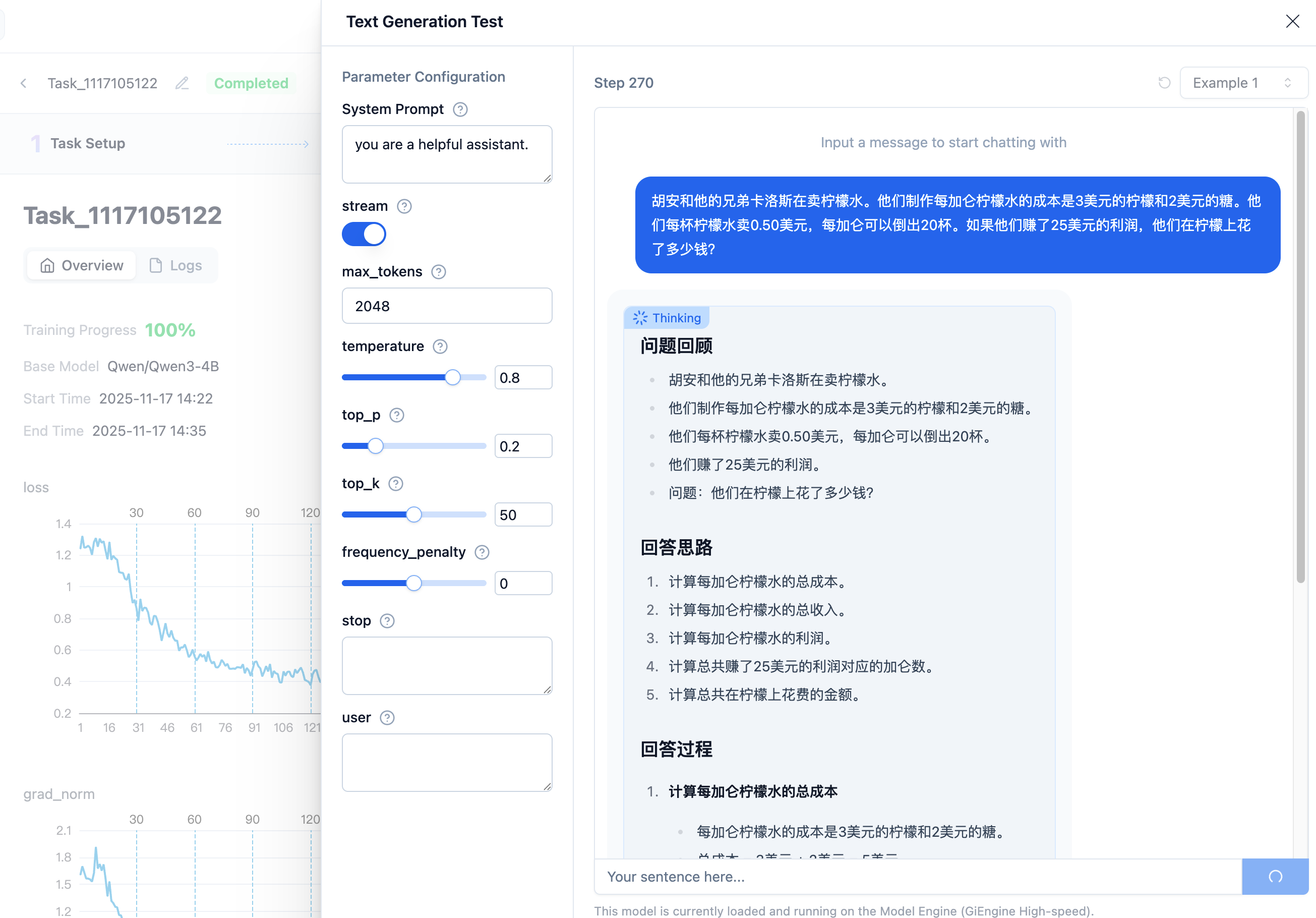
If your dataset has system prompts, you need to fill them in here. These default parameters generally provide good and stable output content under normal conditions. After confirming the input content is correct, click send to view the response results.
 京公网安备11011502039387号